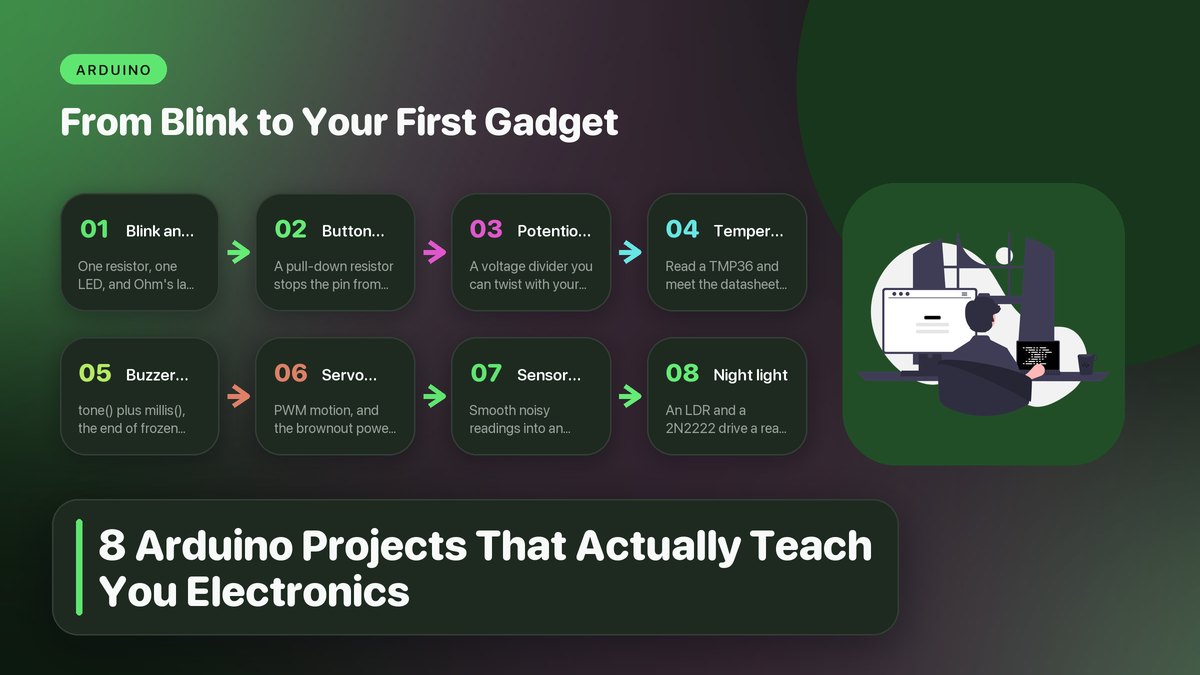
Most beginner project lists hand you code to copy and nothing to learn from it. This is the other kind, eight builds that start with a blinking LED and end with a sensor-driven gadget you soldered together yourself, with every circuit explained, every resistor value justified, and every gotcha I hit on the way through.
My first Arduino arrived on a Tuesday with a starter kit, a breadboard the size of a matchbox, and a vague plan to “learn electronics.” I uploaded the blink sketch that night, watched the little onboard LED strobe away, and felt like I’d accomplished something. I hadn’t, really. But thirty seconds of staring at that circuit taught me more than the sketch did, because the starter kit had included a paper schematic, and the schematic made me ask the first real question of my electronics education. Why is there a resistor in series with the LED? Everything in this article grew out of that question. Each of the eight projects below is one I have actually built at my own bench, and each one exists because it answers a question the previous project raised. Follow them in order and you’ll end up understanding voltage dividers, pull-up and pull-down resistors, PWM, transistor drivers, and analog sensors, not because a textbook said so, but because a circuit misbehaved and you had to figure out why. The official Arduino built-in examples are the reference to keep open in a tab while you work; where this guide differs is that it explains the wiring as carefully as the code.
A note on what “actually teaches you” means here. A project teaches when something about it resists you a little, when the naive version fails and the fix requires understanding, not luck. So every build below comes with the circuit reasoning, the honest failure mode, and the component values I’d hand you across the bench. Total parts cost if you’re buying from scratch is around sixty dollars, and I think half of that is the board itself.
What You’ll Need Before Project One
Almost everything below runs on the cheapest official board, an Arduino Uno R3, and I recommend starting there rather than with a clone or a fancier board. The Uno’s documentation, pinout diagrams, and shield ecosystem are the most forgiving on-ramp in the hobby. Beyond the board you need:
- A half-size breadboard (~400 tie points) and a jumper wire kit. Get the pre-bent wire kit; it keeps dense circuits readable.
- Resistors: a handful each of 220 Ω, 10 kΩ, and 1 kΩ covers everything in this article. The 220 Ω is your LED workhorse; the 10 kΩ handles all the pull-up and pull-down duty.
- Components: three LEDs (any color), a pushbutton, a 10 kΩ potentiometer, a TMP36 temperature sensor, a piezo buzzer, a micro servo (the SG90 is the standard cheap one), a photoresistor (LDR), and a 2N2222 transistor.
- A 9 V battery clip with a barrel plug for the servo project, where USB power isn’t enough.
That’s the whole shopping list. If you bought a generic starter kit, you probably own ninety percent of it already.
The Eight Projects at a Glance
| # | Project | Concept it teaches | The gotcha you’ll meet |
|---|---|---|---|
| 1 | Blink an LED | Current limiting, digital output | LED in backwards (it only conducts one way) |
| 2 | Button input | Pull-down resistors, floating pins | The pin reads random garbage without one |
| 3 | Potentiometer dial | Analog inputs, voltage dividers | Confusing the two outer legs with the wiper |
| 4 | Temperature readout | Sensor datasheets, serial monitor | The TMP36’s offset, since it doesn’t start at zero |
| 5 | Buzzer doorbell | tone(), non-blocking timing | delay() freezes the whole board |
| 6 | Servo sweep | PWM, external power | Brownouts that reset the Arduino |
| 7 | Sensor logger | Environmental sensing, smoothing data | Jumping readings from noisy sensors |
| 8 | Automatic night light | Transistor drivers, LDR dividers | Trying to power everything from one pin |
Project 1: Blink an LED, and Mean It
The resistor question that started everything
Yes, blink. But we’re going to do it properly, because the five minutes you spend understanding this circuit pay for every project that follows. Wire an LED’s long leg (the anode) to pin 13 through a 220 Ω resistor, and the short leg (the cathode, the flat side of the plastic body) straight to ground. Upload the sketch from the official Blink example, and it blinks. Now the teaching part.
An Uno pin outputs 5 V. A red LED drops about 2 V across itself and is happy carrying roughly 10 to 20 mA. The resistor’s job is to burn off the remaining 3 V at a safe current, and Ohm’s law says R = V / I = 3 V / 0.015 A = 200 Ω, which is why 220 Ω is the canonical value and not 100 or 470. Swap in a 1 kΩ and the LED glows dimmer; swap in a 10 kΩ and it’s barely a glimmer, because the current fell to a fifth of a milliamp. I encourage every beginner to try that dim version once. Feeling the brightness respond to the resistor makes Ohm’s law physical in a way equations don’t. Electronics Tutorials has a solid walkthrough of the diode equation and LED forward voltage if you want the fuller picture behind that 2 V number.
One more thing worth building the habit of early. Current flows through the LED in only one direction, so a backwards LED simply doesn’t light. Check orientation before blaming the code. Probably a third of the “my blink doesn’t work” posts on any forum are an LED installed backwards.
Project 2: A Button That Doesn’t Lie
Wire one leg of a pushbutton to 5 V and the other leg to pin 2, then add a 10 kΩ resistor from pin 2 down to ground. The sketch is ten lines: read the pin, and turn the pin-13 LED on when the button reads HIGH. The interesting question is what happens without that 10 kΩ resistor, and the answer is chaos. The pin “floats,” picking up enough capacitive noise from your hand, the room, and the wires to read HIGH, LOW, or a flickering mess in between. The resistor to ground gives the pin a defined LOW to collapse to when the button isn’t pressed; pressed, the button’s direct connection to 5 V wins easily because 0 Ω beats 10 kΩ in a tug-of-war. That resistor is called a pull-down. Its mirror image, a resistor to 5 V with the button to ground, is a pull-up, and that’s so common the Uno has them built in. pinMode(2, INPUT_PULLUP) turns one on inside the chip for free.
This is the first project where the software and hardware are really cooperating, and it’s the first one where the failure mode teaches something. Leave the pull-down off, wave your hand near the breadboard, and watch the LED stutter on and off with nothing touching the button. That’s a floating pin doing what floating pins do. You’ll never forget the resistor after seeing that.
Project 3: A Potentiometer Is a Voltage Divider You Can Touch
A potentiometer has three legs. The two outer ones connect across 5 V and ground; the middle one is a wiper that slides along the resistive track, and it becomes your analog input on pin A0. Twist the knob and the wiper taps a different point on the track. At one extreme it’s at 5 V, at the other it’s at ground, and in between it’s everything in between. The analogRead() call converts that voltage to a number from 0 to 1023 using the Uno’s 10-bit ADC, and suddenly your code can see a dial. The SparkFun voltage divider tutorial is the best short explanation of why this works, and it’s worth reading now because voltage dividers come back in projects 7 and 8.
Map the reading to the delay in your blink sketch and you have a knob that speeds up and slows down the LED, which I think is the first project where your circuit interacts with a person instead of a program. The classic wiring mistake here is using one outer leg and the wiper as if it were a two-leg variable resistor. That works, but it leaves the wiper capable of swinging to a dead short; the three-leg divider wiring is self-limiting and safer, so learn it first.
Project 4: Reading the Real World With a TMP36
Every project so far ran on human input. Now the circuit starts measuring things on its own. The TMP36 is a three-pin temperature sensor: 5 V, ground, and an output pin that sits at 750 mV at 25 °C and rises 10 mV per degree. Wire the output to pin A0 and read it with analogRead(); multiply by 5.0, divide by 1023, and you’re holding volts. Apply the formula from the TMP36 datasheet at Analog Devices and you have temperature. Print it over the serial monitor and you’ve built a thermometer from six wires.
The gotcha is the offset. The sensor reads 750 mV at room temperature, not zero, so beginners who skip the datasheet frequently write code assuming 0 mV equals 0 °C and their “freezer” reads 75 degrees. The datasheet is the fix. This project teaches the most underrated skill in electronics, because the five minutes you spend with the datasheet before wiring saves the hour you’d spend debugging afterwards. I keep a printed copy of every sensor’s first page in a folder above my bench. Adafruit’s TMP36 guide walks through the exact wiring and code if you’d rather follow along than derive it.
Project 5: A Doorbell That Doesn’t Freeze the Board
Wire a piezo buzzer’s positive leg to pin 8 and its other leg to ground, then use tone(8, 440) and noTone(8). Every function in this article lives in docs.arduino.cc’s language reference. Add a button and you’ve built a doorbell. It feels small, but it teaches something big.
The naive doorbell uses delay(500) after the button press, and during those 500 milliseconds the board notices nothing. No second button press, no sensor, no anything. delay() is a full stop, and real gadgets can’t afford full stops. The fix is the millis() pattern. Record the time the button was pressed, and each pass through loop() check whether enough time has passed to stop the tone. Nothing blocks; the board keeps breathing. This one concept, non-blocking timing with millis(), is the single biggest step from “I can follow tutorials” to “I can write firmware,” and project 5 is where it matters enough to learn.
Project 6: A Servo, and the Power Lesson
Plug an SG90 servo’s signal wire into pin 9, and a single library call swings the arm across its range, from myservo.write(0) to write(180). The Uno generates the precise 50 Hz pulse train the servo expects using PWM on pin 9, which is why the signal must go to a PWM-capable pin (on the Uno, the ones marked with a tilde ~). Servos are how beginners first meet real electromechanical motion, and it’s a great moment the first time code becomes torque.
Then you add a second servo, or you mount a horn on something heavy, and the board resets every time the servo starts to move. This is the brownout lesson, and every maker learns it eventually. A servo pulling a load can demand an amp of current, and the Uno’s 5 V rail, coming over USB or its own regulator, can’t source an amp without sagging below the reset threshold. The fix is proper power hygiene: run the servo’s power and ground from a separate supply (the 9 V battery clip works for one small servo), keep the grounds connected between supply and Arduino, and leave only the signal wire coming from the board. Grounds must be common; power must not. That sentence will save you more evenings than any other in this article.
Project 7: A Sensor You Actually Care About
Temperature proved the concept; now build something you’ll glance at daily. Add a DHT22 humidity sensor and an OLED or LCD readout, and log the values to the serial plotter to watch your room breathe overnight. The DHT22 speaks a fussy one-wire protocol, but the community library handles the timing. Wiring is 5 V, ground, and one data pin with a 10 kΩ pull-up between data and 5 V. The Adafruit DHT sensor guide covers both the wiring and the library setup, and the serial plotter tutorial shows how to turn raw numbers into a live graph without any extra software.
The teaching moment in project 7 is noise. Left raw, the readings jump around, 44.1, 45.8, 43.9, 45.2, for a room that hasn’t changed at all. The fix is a moving average. Keep the last five or ten readings in an array, average them, display that. Five lines of code, and the gadget looks like an instrument instead of a random number generator. You will reuse this smoothing pattern in every sensor project you ever build, including the last one below.
Project 8: The Automatic Night Light, Your First Real Gadget
Everything converges here. A photoresistor (LDR) and a 10 kΩ fixed resistor wired in series between 5 V and ground form a voltage divider, and if project 3 did its job, that sentence already makes sense. The midpoint feeds pin A0, and its voltage slides up and down as the room brightens and darkens. Read it, smooth it with the project-7 average, and when the light drops below a threshold you set by covering the sensor with your hand, the gadget should respond.
But an LED on a pin won’t cut it as a “lamp,” and powering anything beefier straight from an I/O pin will damage the pin. The absolute ceiling is 40 mA, and pins are happier well under that. Enter the 2N2222 transistor, wired as a switch: the pin drives the base through a 1 kΩ resistor, the collector goes to your LED with its own 220 Ω, and the emitter goes to ground. A few milliamps at the base lets several hundred milliamps flow through the collector, and the pin never carries the load. This is the transistor-as-switch pattern, and it’s the doorway to every serious project in the hobby, from relays to motors to LED strips. Wire it so the LED comes on in the dark, box the whole thing in a tin, and set it on the shelf. When it lights itself at dusk you’ll feel the click every maker remembers, the moment the projects stopped being exercises and started being yours.
If You Get Stuck (You Will, Once or Twice)
These are the failure patterns that account for nearly every beginner’s stalled circuit, in roughly the order you’ll meet them:
- Check power first, always. A meter, or even an LED with a resistor across the rails, tells you whether the board is alive before you debug anything downstream. Probably half of all “broken” circuits are a loose jumper in the power rail.
- Polarity. LEDs, electrolytic capacitors, and the TMP36 all care which way they face. The flat side, the stripe, and the flat face of the TO-92 package are your friends.
- Grounds common. Any time a second supply is involved, the servo project being the first, every ground in the circuit must connect together. Signal without a shared ground is signal without meaning.
- Read the actual error. The Arduino IDE’s messages are terse but accurate; “was not declared in this scope” is a missing semicolon two lines up, nine times out of ten.
- Change one thing. The same discipline as tuning a 3D printer applies here. One variable at a time, verify, then the next.
And when the circuit won’t cooperate, describe it to someone. The Arduino forum is full of people who debug other people’s breadboards for fun, and a phone photo plus your actual code gets answers fast. Asking well is a maker skill too.
Where to Go After Project 8
You now own the full toolkit a beginner needs. Current limiting, pull resistors, voltage dividers, datasheets, non-blocking code, power hygiene, sensor smoothing, transistor drivers. The natural next steps depend on which part grabbed you. If the transistor excited you, look at driving a relay and then a motor with an H-bridge. If the sensors were the fun part, an ESP32 board gives you Wi-Fi for a few dollars more and opens the whole world of home sensing. And if you just liked making the lights do things, addressable LED strips are, in my opinion, the most joy-per-dollar purchase in the entire hobby. Whatever you pick, the pattern stays the same from here on out. A circuit resists you a little, a datasheet gets read, one careful change gets made, and there’s the small click of understanding. That click is the whole hobby.
Built and tested on an Arduino Uno R3. Component values assume a 5 V board; the Uno’s official documentation, the TMP36 datasheet, and the Adafruit and SparkFun guides linked above were consulted while writing. External links checked October 2026.
Leave a Reply