Author: admin

  • Soldering for Beginners: Your First Solid Joints and Common Mistakes

    Soldering for Beginners: Your First Solid Joints and Common Mistakes

    Electronics & Arduino

    Soldering is the skill that turns a pile of parts and a blank circuit board into something that actually works, and it’s far more forgiving than it looks once you understand what the molten metal is doing. No steady hand required. This is the technique I’d teach a friend over an afternoon at the bench: which iron to buy, how to tin a tip, how to land a through-hole joint in about three seconds, and how to spot the handful of bad joints that cause almost every beginner failure.

    Updated October 2026 · 13 min read

    My first solder joint looked like something a bird had left on the board. Gray, lumpy, sitting on top of the component lead instead of hugging it. I was proud of it anyway, because the wire stayed put when I pulled on it, and it stayed put for the rest of that evening. By the next day the joint had failed silently, which is the worst way a joint can fail, since you get no error message, just a project that almost works. Frustrating, in hindsight. I’d made a classic cold joint, and I didn’t know enough yet to recognize it.

    That distance between a joint that looks done and a joint that conducts reliably is what this guide closes. The whole craft reduces to a short list of habits. The right temperature on the iron, a tip that’s freshly tinned, a two-to-three-second touch on each joint, and enough patience to let the joint cool without being jiggled. Four habits, no more. Get them right and the solder mostly does the work for you, flowing where it should and locking the parts together with a bond that lasts for decades. Most bad joints I’ve examined, mine and other people’s, trace straight back to breaking one of those habits.

    We’ll go in the order I’d actually teach it, hands before theory, because the theory only makes real sense once your fingers have felt the difference between a hot joint and a cold one.

    Choose the Iron Before Anything Else

    A temperature-controlled station beats a “hotter is better” fixed iron every time

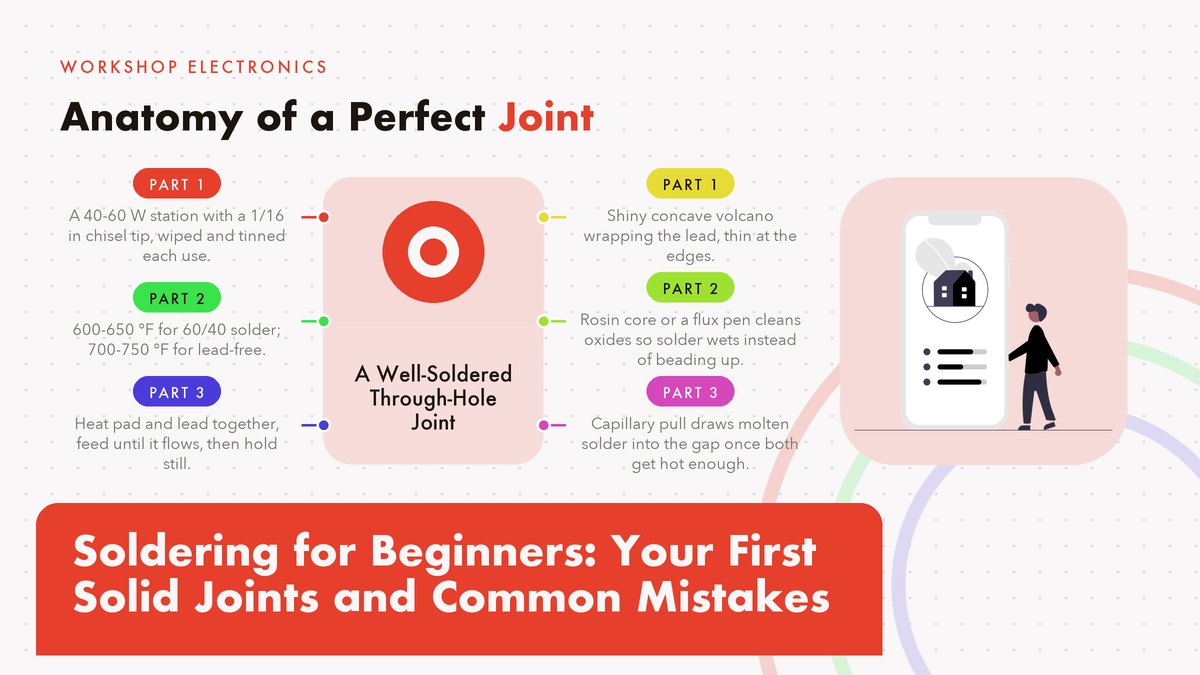
    A soldering iron is a heated bit of copper alloy on a handle, and the single property that matters most is whether you can set its temperature and trust it. A proper temperature-controlled station in the 40-60 watt range, with a dial from roughly 200 °C up to 480 °C (about 400-900 °F), covers every beginner task and most advanced ones. For standard 60/40 solder you’ll live around 315-345 °C, which is 600-650 °F, and that band is printed or dial-marked on nearly every decent station sold today.

    Skip the eight-dollar fixed-power irons that plug straight into the wall. All of them. They have no thermostat worth the name, so the tip temperature swings between too cold to melt solder properly and hot enough to scorch a board, often within the same joint, sometimes both one joint apart, and the overshoot is exactly what lifts pads and cooks components. I’ve watched beginners blame their technique for months when the tool was the problem the whole time. A basic station in the $40-60 range pays for itself the first time it saves a board, which in my experience happens within the first month.

    Tip shape matters more than beginners expect, and the pretty tips are the trap. The skinny needle-point tips that look precise are poor heat conductors for general work because they touch so little metal. A chisel tip around 1/16 inch (1.5 mm wide) transfers heat into both the pad and the lead at once and will handle ninety percent of the through-hole joints you’ll ever make. Save the fine conical tips for surface-mount parts. You won’t touch those for a while.

    Before you buy anything, it’s worth reading the manufacturer guidance on tip selection and temperature ranges. Weller’s official pages, for instance, cover tip geometry and heat settings in more depth than any forum post. It costs nothing to read. Good pre-buy reading, whatever brand of station ends up on your bench.

    Rule of thumbIf you can’t set the temperature, you can’t diagnose the problem. A station with a real dial turns “why is this board scorched” from a mystery into a number you can lower.

    Pick Your Solder: 60/40 or Lead-Free

    For learning, buy rosin-core 60/40 tin-lead solder, 0.031 inch (0.8 mm) diameter, on a small spool. The rosin core means a mild flux runs through the middle of the wire, cleaning the metal as you work, which is one less thing to think about while you’re learning hand position. One spool lasts for years. Sixty-forty melts around 361 °F (183 °C), flows smoothly at station temperatures, and solidifies with a bright shiny finish that makes it easy to judge your work at a glance.

    Lead-free solder, usually a tin-silver-copper alloy sold as SAC305, melts closer to 423 °F (217-220 °C) and behaves a little differently: it wets more slowly, prefers a hotter iron, and sets with a duller, satin finish that alarms beginners who expect mirror shine. It’s the right choice if your country restricts lead, or you’re soldering things a child might handle, but I’d still learn on 60/40 if you can, because its forgiving flow teaches you what good looks like. Start there. Kester, one of the oldest solder manufacturers, publishes alloy data and handling guidance on its site if you want the technical numbers behind either choice.

    Yes, lead is a real toxin, and the risk is worth exactly one habit: wash your hands when you’re done, and keep food and drinks off the bench. The solder isn’t going to hurt you through your skin in an afternoon session, but it will ride on your fingertips straight to your sandwich if you let it. That’s the entire defense, honestly. Soldering also smells, mostly the rosin, and a small fan moving air across the bench toward an open window handles the fumes comfortably. Some people love the smell. I’m not one of them, to be fair.

    Set Up a Bench You Can Trust

    Four things live on a safe soldering bench, and none of them is fancy: an iron stand so the hot tool never rolls, a damp sponge or brass wool for cleaning the tip, safety glasses, and a surface that can’t burn. A silicone mat is ideal, but a piece of scrap plywood works fine and costs nothing from the offcuts bin of any lumberyard. Total cost is close to zero.

    It’s also worth knowing what the professional end of this craft looks like, because it calibrates your sense of “careful.” NASA maintains public workmanship standards for exactly this kind of hand work, and the NASA-STD-8739.3 page describes the hand-soldering standard technicians are trained and inspected against for flight hardware. Eye-opening reading, some of it. You don’t need to meet aerospace criteria to fix a guitar pedal. But the criteria in that world will sharpen your eye for what a properly wetted joint looks like.

    One more rule that costs nothing. Never leave the iron on and unattended. Unplug it or switch it off the moment you step away, even for a minute, and give the tip a fresh coat of solder before it cools, which we’ll get to next.

    Tin the Tip, Every Single Time

    “Tinning” means coating the working end of the tip with a thin film of fresh solder, and it’s the habit that separates people whose irons behave from people who fight theirs. Copper oxidizes the moment it gets hot, and an oxidized tip is a brown, crusty insulator that solder refuses to wet, no matter how long you hold it to the joint. Oxidation never sleeps. The thin solder film protects the copper and, more usefully, gives the heat a liquid bridge into whatever you’re soldering.

    The routine takes about three seconds. Wipe the tip across a damp sponge or poke it into brass wool a few times, then touch solder to it briefly so it coats with a bright silver film. Do this before you start, between joints when the tip looks dull, and always, always before you park the iron. A tip that gets put away clean and tinned will last years; a tip that gets put away black and dry will be corroding by morning.

    The Three-Second Joint

    Through-hole technique: pad, lead, solder, done

    Everything above is preparation. This is the actual move, and it’s over faster than it takes to read about it. Say you’ve got a resistor with its legs through a circuit board, ready to be anchored:

    • Touch the iron to the pad and the lead together. The solder comes later. Give it about a second so both reach soldering temperature.
    • Feed solder into the joint from the opposite side of the lead from the tip, right where the pad meets the leg.
    • Watch the flow. The moment the solder melts into a bright ring that wraps the lead and pools on the pad, stop feeding. Total contact time should land around 2-3 seconds.
    • Pull the iron away and hold the part perfectly still for another second or so while the joint solidifies. Any movement in this window is how cold joints are born.
    • Look at it. A good joint is shiny and slightly concave, like a tiny volcano slope between pad and lead. That’s your pass/fail check.

    The physics is simple. Molten solder chases heat. When the pad and lead are both hot, capillary pull draws the solder into the gap between them and it wets the surfaces, which is the technical word for “spreads thin and sticks.” If you instead melt solder on the tip and drip it onto a cold joint, the solder balls up into a bead sitting on the surface like water on a waxed car, because nothing underneath was hot enough to pull it in. That bead might hold mechanically for a while and it conducts electricity about as well as it looks, which is to say barely.

    If you want to watch this done properly before you try it, Adafruit’s Collin’s Lab soldering episode shows the whole sequence close up, in real time, with a calm voiceover that won’t make you feel rushed. It’s the video I’d put on a loop for a first session.

    Solder follows heat. If the joint never got hot enough to pull the solder in, no amount of extra solder piled on top will rescue it.

    One caveat on timing, because I said two to three seconds and I stand by it for normal joints. Big ground-plane pads on a board act like heat sinks and can soak up the iron’s output, so a joint there might take five seconds or more. That’s fine. The rule isn’t the clock, it’s watching the solder flow. Feed until it flows, stop when it does, and if it never flows after a reasonable wait, the iron is too cold or the tip is dirty. Fix that instead of standing there cooking the board.

    What a Good Joint Actually Looks Like

    Learn the good shape once and every future joint carries its own inspection report. The ideal through-hole joint shows a fillet, which is the smooth concave slope of solder running from the lead down onto the pad, bright and mirror-like for leaded solder, satin for lead-free. The lead is fully wrapped, the pad is fully covered, and the solder is thin at the edges. It should look like the metal settled there, because more or less it did.

    The failure shapes are just as distinctive. A ball or bulb perched on top means too much solder and not enough heat underneath. A dull, grainy, frosted lump means the joint moved while cooling, or the surfaces were dirty, or the iron never got them hot. A joint with the solder beading off to one side, leaving part of the pad bare, means poor wetting, and the fix is flux plus heat rather than more solder. If you want the theory behind wetting and why solder sticks to copper at all, electronics-tutorials.ws covers the fundamentals clearly and without assuming you have an engineering degree.

    Wires Are a Related but Different Animal

    Joining two wires together is the same physics wearing different clothes, and it’s worth practicing because connectors and splices come up constantly in hobby projects. Practice this one early. Strip about a quarter inch (6-7 mm) of insulation, twist the strands of each wire clockwise so they don’t fray, then tin each end briefly: touch the iron to the wire, feed in just enough solder to coat the strands, and pull away within a couple of seconds. Tinned wire ends look dipped in silver and hold their twist.

    Join them by laying the tinned ends together along their length, heating the overlap until the existing solder merges, and then, if the merged joint is exposed, sliding heat-shrink tubing over it before any of that, because you can’t add the tube after you’ve soldered. Ask me how I know. Which is a mistake everyone makes exactly once. Slide the tubing on the wire before you make the joint, push it well away from the heat, then shrink it over the finished splice with the side of the iron or a hair dryer.

    Two failure modes to know. First, solder wicking up under the insulation makes the wire stiff and brittle right where it flexes most, so keep the iron time short and stop feeding the moment the strands are coated. Second, twisting wires into a rat’s nest before soldering doesn’t add strength the way people assume, the soldered lap joint does the work, so tidy twists, short heat, done.

    The Mistakes That Get Everyone

    Almost every bad solder joint a beginner makes is one of six or seven shapes, and each has a signature and a cure. This table is the whole troubleshooting manual. Screenshot it:

    Mistake What it looks like The cure
    Cold joint Dull, grainy, gray, frosted surface instead of shiny; often a blob perched on the lead Reflow it: add a touch of flux, reheat until the solder flows, hold perfectly still while it cools
    Pad lift The copper pad has torn off the board, leaving a bare fiberglass crater and sometimes a loose pad stuck to the lead Prevention: never lever or tug a joint while it’s hot. Repair: solder a short jumper wire from the lead to the trace the pad came from
    Solder bridge A shiny blob spanning two adjacent pads or pins, shorting them together Clean the tip, touch the bridge so it pulls up onto the tip, or wick the excess away with desoldering braid, then check the gap again
    Too much solder A ball sitting on the joint instead of a fillet, maybe hiding the lead completely Reflow and let surface tension pull the excess off, or wick away the surplus, then redo with less solder. Less is more
    Overheated joint Scorched brown residue, a matte crusty finish, lifted or wrinkled pad edges Work faster at the right temperature with a clean, tinned tip. Prevention beats repair here
    Poor wetting Solder beads up like mercury, rolling off the pad and refusing to spread Dirty or oxidized surfaces, an old tip, or not enough heat; clean everything, add flux, and give the joint the full 2-3 seconds
    Cooked component Melted plastic, a smell you notice, a part that tests dead afterward Clip a small alligator clip between the joint and the component body as a heat sink, and keep each touch to a few seconds

    The cold joint deserves extra attention because it’s the one that passes visual inspection from across the room and then fails weeks later, often intermittently, which makes it a joy to debug. Dull means redo. SparkFun’s through-hole soldering tutorial has excellent photos of cold joints next to good ones, and seeing the pair side by side trains your eye faster than any description. If a joint is dull, reflow it without mercy, even if it seems to work. Especially if it seems to work.

    And a word on the intermittent-failure type specifically, because it teaches something useful: a cracked cold joint often conducts until the board flexes or warms up, which is why a project can work on the bench and die inside an enclosure. When a circuit fails only sometimes, reflow every joint in the suspect area before you replace a single component. I think this one tip has saved me more money and confusion than everything else in this article combined, and it’s free.

    Fixing a Bad Joint Without Making It Worse

    Desoldering is soldering with the direction reversed. Two tools cover almost everything, and both are worth owning early. Desoldering braid (also called solder wick) is braided copper that you press onto a joint with the iron; capillary action pulls the molten solder up into the braid, and you lift both away together. A solder sucker is a spring-loaded plunger that vacuums the molten solder off the joint in one motion when you trigger it. Between the two, braid handles most through-hole work and the sucker shines on larger pads.

    The protocol for redoing a joint is shorter than you’d expect. Add a little flux to the old joint first, because flux is the thing that got consumed the first time around. Flux first, always. Reheat until the solder liquefies again. Sometimes that alone fixes a cold joint, because the flux cleans the surfaces and the solder re-flows into a proper fillet on the second pass. If the joint is overloaded with solder, wick some off first, then reflow. If the pad has lifted, don’t panic and don’t scrape at the board; solder a short bit of insulated wire from the component lead directly to the copper trace that used to connect the pad. The circuit will never know.

    Patience beats forceNever pry a component while any solder in the joint is still molten. Rocking or levering a hot joint is the number-one cause of lifted pads, and a lifted pad turns a two-minute fix into a jumper-wire repair. Heat, wick, wait, then wiggle the part; it should drop out with light finger pressure.

    Lead-Free: The Same Dance at a Hotter Setting

    If you’ve gone lead-free, nearly everything in this guide holds, with the temperature raised. Set the station around 370-400 °C, which is 700-750 °F, use a slightly bigger tip than you think you need to push heat in faster, and keep the tip well tinned at all times, because lead-free alloys corrode tips noticeably faster than 60/40. Same habits, more heat. Expect the joints to set with a satin rather than mirror finish and stop chasing shine that the alloy simply doesn’t produce.

    The one genuine behavioral difference is wetting speed. Lead-free solder takes a beat longer to flow and likes a touch more flux, so give each joint an extra second of contact and don’t interpret the slower flow as a cold iron. It probably isn’t. Which brings the whole thing back to the one skill this entire guide is built on: watching the solder instead of the clock, and adjusting until it flows the way you now know it should.

    A Weekend Practice Plan

    You can read about soldering indefinitely, but the skill arrives through joints, plural, dozens of them. Ten dollars is all it takes. A “learn to solder” practice kit, usually a little board with a handful of resistors, LEDs, and a battery clip that becomes a siren or a blinker when you’re done, and that finished object matters more than it seems, because a project with a payoff keeps you at the bench. Follow it with a cheap perfboard and a bag of headers. Then solder yourself a simple power distribution board you’ll actually use.

    Then go scavenging. Any dead electronics from the junk drawer, an old radio, a broken charger, holds dozens of components you can practice desoldering and resoldering, and it costs nothing when you lift a pad. Judge your progress by the simple test: make twenty joints, then check them with a magnifier or your phone’s camera. When nineteen out of twenty show a bright, smooth fillet, you’re done practicing, whether that’s Saturday evening or three weekends from now. Pick a real project, a kit, a repair, something with a motor or lights in it, and let it be slightly too hard. It will go wrong in at least one interesting place, and fixing it is where soldering stops being a drill and starts being a craft you own.

    Sources & references: Weller tip-selection guidance, Kester alloy data, NASA-STD-8739.3 workmanship standard, Adafruit Collin’s Lab, SparkFun’s through-hole tutorial, and electronics-tutorials.ws, all linked above. Temperatures are starting points for a typical station; adjust to your iron, your solder, and what you see the joint doing. Updated October 2026.

  • How to Read a Circuit Diagram Without an Engineering Degree

    How to Read a Circuit Diagram Without an Engineering Degree

    Electronics & Arduino

    A schematic reads like abstract art for roughly your first hundred encounters with one. Then the symbols repeat and the lines start meaning something, and one afternoon you catch yourself reading a stranger’s circuit the way you’d read a recipe. This is the path from wall to fluency, symbol by symbol.

    Updated October 2026 · 13 min read

    Every electronics hobbyist hits the same wall. Say you’ve got a breadboard, a pile of parts, plus a project page with a small black-and-white drawing full of zigzag lines and mysterious arrows, and the drawing might as well be sheet music. That wall comes down faster than you’d expect, because a schematic carries maybe forty common symbols in total, and the projects you’re likely to build in your first year lean on about fifteen of them. Learn those fifteen and you can read most of what the hobby throws at you, starting with the reference many of us began with, SparkFun’s classic tutorial, How to Read a Schematic, which pairs every symbol in this article with a clear drawing.

    I’m going to assume you can already copy a simple build from a photo or a wiring diagram. That skill matters and it stays useful. But photos scale badly past about ten parts, and no photograph can show what’s happening inside an integrated circuit. The schematic solves both problems at once, because it shows connections rather than appearances. What follows is the order I’d give a friend who asked me over coffee. The symbols come first, then the power and ground conventions that trip nearly everyone, and finally the move that turns a drawing into a working breadboard layout.

    Why the Drawing Looks Hostile

    It’s a map of connections, not a portrait of parts

    The hostility is mostly historical. Electrical symbols were standardized in parallel on two continents, and the two camps drew several parts differently. The zigzag resistor you’ll see in American books comes from the ANSI and IEEE 315 tradition, while most of the rest of the world settled on a plain rectangle under IEC 60617, the international graphical-symbol standard. Both versions are still in circulation, which is why an Arduino-era schematic might show a rectangle where a 1970s textbook shows a squiggle. Same part, same job, different accent. And honestly, once you’ve seen both a few times, your eyes stop caring which one is on the page.

    Once you know that, the whole genre relaxes. Nothing on a schematic is drawn to scale, and parts appear wherever they keep the lines tidy. The lines themselves are the real content. Each one is an ideal wire, so if two lines touch at a filled dot, those points are the same electrical point, and if they cross with no dot, they pass by unconnected. Two rules do most of the work in any drawing you’ll meet.

    The Core Symbols You’ll Actually Meet

    Start with the small cast of parts that shows up in nearly every beginner and intermediate project. The table below is the working vocabulary; the sections after it walk through the four symbols where orientation actually matters.

    Symbol What it does The detail that trips people
    Resistor Limits current, divides voltage Zigzag (US) or rectangle (IEC) mean the same part
    Capacitor Stores charge, smooths voltage Two straight lines is either-way; a curved line means polarized
    Diode One-way valve for current The triangle points at the bar; current flows the arrow’s way
    LED A diode that makes light Diode symbol plus two small arrows, light escaping
    Transistor A valve controlled by a small current The emitter arrow tells NPN from PNP at a glance
    Ground The return path back to the supply Every ground symbol on the page is one single node
    Battery / power The voltage source for the circuit Long line is positive, short line is negative
    Switch Opens or closes a path Usually drawn open even when your build leaves it closed

    Resistors: The Zigzag and the Box

    Begin with the resistor, because it’s the simplest part with a symbol worth arguing about. In American drawings you’ll see a zigzag; in European output and most modern CAD tools you’ll see a small empty rectangle. They’re interchangeable, and I wouldn’t spend a minute worrying about which one a given drawing uses. The label beside the symbol does the real work. R3 tells you it’s the third resistor on the board, and 4.7k tells you it resists with about 4,700 ohms, while plain numbers like 220 or 470 with no unit at all mean ohms, since everyone agrees on that much.

    One notation catches almost everyone eventually. A value like 4k7 uses the letter k as a decimal point, which reads as 4.7 kilohms, and older European schematics write 2M2 for two-point-two megohms. It looks like a typo the first time you meet it. It isn’t.

    Capacitors: Mind the Curve

    The plain capacitor symbol is two parallel lines that never touch, which is honestly a small portrait of the part itself, two metal plates held apart by a gap. That version is non-polarized, so you can drop it into a breadboard either way and sleep fine.

    That curved line changes everything. When one plate of the symbol bends into a curve, or a plus sign appears beside it, the part is polarized, usually an electrolytic or tantalum can. Insert it backwards and it can leak, heat up, or in rare cases pop with a smell that lingers in the workshop. The curved plate marks the negative side on the drawing, and on the physical part the negative leg is commonly the shorter one, with a stripe running down that side of the can. Two independent clues. Use both, and you’ll be fine.

    Diodes and LEDs: Follow the Arrow

    A diode is a one-way valve, and the symbol says so out loud. A triangle points at a vertical bar, and conventional current flows in the direction the arrow points, into the bar and onward, while a battery wired the other way meets the diode’s wall. The two terminals have names worth memorizing because every datasheet uses them: the arrow side is the anode, the bar side is the cathode. B and C. There’s your mnemonic.

    An LED adds almost nothing to the drawing, just the diode symbol with two little arrows beside it, light escaping. On the physical part the cathode is often the shorter leg, with the flat spot on the LED’s rim marking it as a backup; inside many clear LEDs the larger internal pad is the cathode too. Three clues pointing the same way. If they ever disagree, trust the flat spot, because that’s molded into the package and doesn’t get bent by a previous project.

    Transistors: One Arrow Settles It

    The transistor symbol intimidates people for no good reason. It’s a vertical line with three legs (collector, base, emitter) and sometimes a circle around the whole thing, though modern drawings often skip the circle. The only detail you must extract on sight is a small arrow, and it always lives on the emitter leg.

    If that arrow points away from the base, outward, you’ve got an NPN transistor. If it points inward, toward the base, it’s PNP. The old mnemonic still works, and I’ve leaned on it for years: NPN means Not Pointing iN. Most Arduino-adjacent projects reach for NPN parts like the 2N2222 or the BC547, so when a schematic stays silent about flavor, NPN is a decent guess. The rest of the drawing is identical either way. Only the arrow direction tells them apart.

    A schematic is a map of connections, not a portrait of parts. Learn what the lines say, and the rest is lookup.

    Power, Ground, and the Rails Nobody Explains

    This is where most beginners stall, because the drawing suddenly stops drawing things. Wires to the battery and to ground get replaced by little symbols and text labels: VCC, 5V, 3V3, GND. All of these are still ordinary wires, just renamed. VCC is the positive supply rail, a name descended from bipolar-transistor circuits where it meant the voltage at the collectors, and GND is the common return that every current in the circuit eventually flows back to. When a resistor connects to VCC on the schematic, picture a wire running from that resistor across your bench and into the red rail of the breadboard, because that rail and that label are the same node drawn in two dialects.

    Ground earns its own paragraph because it does more work than its humble symbol suggests. The three stacked lines that taper downward mean signal ground in a hobby schematic, and every instance of that symbol on the page is the same electrical point, even when the drawing shows five or ten of them scattered around. When a bench circuit misbehaves, the first thing I’d check is a ground that exists on paper but was never jumpered on the breadboard. I lost an hour to exactly that mistake once, hunting a fault that turned out to be one missing GND wire from a chip. An hour, for one jumper.

    Voltage labels deserve the same respect, because here’s the most confusing convention in all of schematic reading. When two parts both connect to a net labeled 3V3, they’re connected to each other through the label itself, even though no wire joins them on the page. Same label, same node. Read it twice and it sticks forever. Chips carry their own dialect too. Many ICs label their supply pins VDD and VSS instead of VCC and GND, a leftover from MOSFET circuits, and the schematic will almost always translate for you. Old habit, same meaning. Underneath all of this sit the voltage and current fundamentals, and SparkFun’s Ohm’s law tutorial is the friendliest warm-up I’ve found if the physics side feels rusty.

    Common trapIn a battery symbol the long line is positive and the short line is negative, and the drawing is arranged that way so the schematic matches the part in your hand. But regulator and barrel-jack symbols hide their polarity in the labels, so trust the text (5V, GND) before you trust any memory of which line was which.

    Reading the Drawing in One Pass

    When a new schematic lands in front of me, I read it in a fixed order that saves real time. First, find the power: where voltage enters and where ground lives. Second, find the load, meaning the LED, the motor, or the speaker, because that’s the thing the circuit exists to drive. Third, find what controls the load, whether that’s a transistor, a switch, or a chip pin. Walk the path from supply, through the control element, to the load, and back to ground, and you’ve reconstructed the story the drawing is telling.

    Reference designators reward a glance too. The letter tells you the family (R for resistors, C for capacitors, D for diodes, Q for transistors, U for chips), and the number just orders them on the page. They look like noise at first. They’re actually the bridge between a schematic and any build guide, because when a tutorial says “install R4,” that label is how you find R4 on both documents. For anything rare that wanders in, from a quartz crystal to a transformer, Wikipedia’s electronic symbol reference shows both the ANSI and IEC variants side by side.

    One more habit worth stealing: the values printed on a schematic are the design’s intent, not a shopping list. If the drawing calls for 4.7k and your parts bin offers 4.99k or 5.1k, the circuit almost certainly won’t care, because resistors come in standard steps anyway and the design was rounded to one of them from the start. Build with what’s in front of you. Order exact values when a project says it matters, like a timing circuit or a precision divider.

    From the Drawing to the Breadboard

    This is the payoff move, going from paper to a working layout, and it goes wrong in predictable places. So I build in a fixed order, and I’d suggest you do the same until your own habits settle. Rails first, always.

    • Orient the schematic the way you’ll build. I sketch a rough map first: power at the top, ground at the bottom, inputs on the left. A schematic drawn at a weird angle still translates fine once you impose your own compass on it.
    • Wire the rails first, red to 5V and blue to GND, and jumper both long side rails so you don’t run out of ground holes two components in.
    • Place the biggest part, pins first. An IC straddles the breadboard trench down its middle so every pin lands in its own row, and the smaller parts fill in around it afterward.
    • Check every polarized part twice. LED flat side, capacitor stripe, transistor flat face, each one verified against the symbol before power goes anywhere near the board. One reversed cap can sour a whole evening.
    • Add the decoupling capacitor. The drawing usually shows 100 nF from the chip’s VCC pin to GND. Skipping it is how you get a circuit that works on the bench and fails on a Tuesday for no visible reason. Ask me how I know.
    • Power last, meter first. Before the first switch-on, I touch the meter across the supply pins to confirm the voltage the schematic promised is the voltage that actually arrived.

    The Arduino built-in examples page pairs a schematic with a wiring diagram for every circuit it teaches, which makes it the perfect practice ground for this exact translation. You can read the drawing, build your interpretation, and then check it against a finished layout that someone else already debugged.

    Once the circuit works, take a photo of the breadboard from straight above, while the wiring is still honest. I’ve lost count of the times I tore down a working build and then spent the next weekend trying to remember which resistor went where, and one overhead photo would have settled every one of those afternoons in about a minute. Label the photo with the project name while you still remember which project it was.

    Reading Schematics That Aren’t Yours

    Most of the schematics you’ll read weren’t drawn for you. They come from project pages, forum threads, old magazine scans, and they carry their authors’ habits along for the ride. Some label every net; some label none and expect you to trace lines with a finger. Some use the rectangle resistor, and half the internet still draws the zigzag. Adafruit’s Learn Arduino series is a good example of the friendlier style, with one concept per page and a wiring diagram sitting next to each schematic, while the official Arduino tutorial archive does something similar at much bigger scale. Reading a lot of these, even circuits you never build, trains the pattern recognition faster than anything else I know.

    Drawing Your Own

    You don’t have to draw schematics for a long while. But the day you start modifying circuits instead of copying them, sketching your own pays for itself, and free tools have erased every excuse. KiCad is the standard recommendation: actually free, open source, and the same package plenty of professionals use. Its getting-started documentation walks you through a first schematic from zero, and the habits it teaches, connecting with named nets and running the electrical rules check before you build, are exactly the discipline the pros rely on. Even a hand-drawn schematic on graph paper beats nothing, as long as the reference designators and values are written somewhere that you, six months from now, can still read.

    The Moment It Clicks

    None of this is magic, and none of it needs a degree. It needs maybe fifteen symbols and the two rules about wires and dots. Your first few schematics will feel slow, with a lot of tabbing back to a symbol chart. Then one evening you’ll skim a circuit someone posted, notice the missing pull-up resistor in their design, and type a reply before you’ve consciously parsed the drawing. That moment arrives for everyone who stays in the hobby long enough. It’s worth an hour of hunting for a ground jumper, and I’d say it’s worth a few.

    External references checked October 2026: SparkFun’s schematic tutorial and Ohm’s law guide, the IEC 60617 overview on Wikipedia, Wikipedia’s electronic symbol reference, the Arduino built-in examples and official tutorial archive, Adafruit’s Learn Arduino series, and the KiCad getting-started documentation.

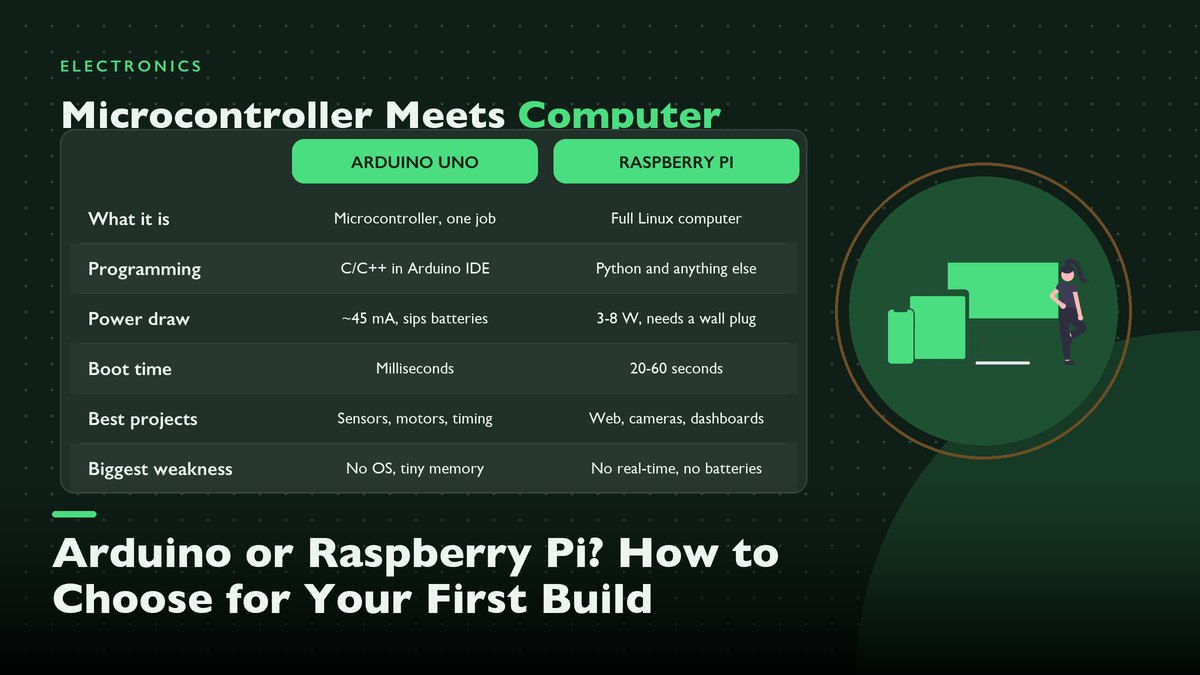
  • Arduino or Raspberry Pi? How to Choose for Your First Build

    Arduino or Raspberry Pi? How to Choose for Your First Build

    Electronics & Arduino

    One board runs a single loop of code on less power than a night-light; the other boots a full Linux desktop and draws more current than a phone charger. Buying the wrong one for a first project is the most common, and most avoidable, mistake in this hobby, so here is the honest side-by-side I wish I’d had before my first cart checkout.

    Updated October 2026 · 13 min read

    The standard advice to every new electronics hobbyist goes something like this: start with an Arduino, graduate to a Raspberry Pi later, and buy whichever one the project in front of you actually needs. It sounds tidy. Tidy, and mostly wrong. It’s also how people end up with a $60 Linux computer running one blinking LED, or an 8-bit microcontroller drowning in a web request it was never built to answer. I’ve built projects on both boards for years now, and my honest answer to the “which first?” question has stayed the same the whole time. It depends on exactly one thing, and it isn’t price, and it isn’t how much code you already know.

    What matters is how much computer your project actually needs. The two boards get compared like rival products, but they’re closer to a screwdriver and a drill press sitting on the same shelf. Different jobs. An Arduino Uno is a microcontroller board. One chip, one program, no operating system, and it starts running your instructions within a millisecond of power arriving. A Raspberry Pi is a whole computer on a credit-card board, complete with a quad-core processor, gigabytes of RAM, and full Linux, plus USB ports and HDMI out. A pin header on top just happens to touch electronics.

    One of them executes instructions with timing you could set a watch by. The other juggles a hundred background tasks and reaches your sensor when the scheduler finally allows it. Both cost roughly the same as takeout for two. Neither one replaces the other, and anyone who tells you one made the other obsolete has probably never wired either to a battery.

    The Thirty-Second Version

    Arduino Uno Raspberry Pi 5
    What it is Microcontroller board (ATmega328P) Single-board computer (quad-core Arm)
    Runs Your one program, forever, nothing else Full Linux, apps, browser, background services
    Programming C/C++ in the Arduino IDE Python, and more or less any Linux language
    Memory 32 KB flash, 2 KB RAM 4–16 GB RAM, plus microSD storage
    Logic voltage 5 V pins, 20 mA per pin 3.3 V pins, no 5 V tolerance
    Power draw ~45 mA at 5 V (about 0.25 W) 3–8 W depending on load; wants a 5 V/5 A supply
    Boot Milliseconds to first instruction 20–60 seconds to a usable desktop
    Typical price ~$30, official or clone $60 (4 GB) to $80 (8 GB), plus card and supply

    If a single row decides it for you, make it power draw. For most builds, anyway. A board that sips a quarter watt and one that wants a 27-watt phone charger live in completely different project worlds, and no amount of cleverness moves them closer together.

    What You’re Actually Choosing Between

    Microcontroller vs. single-board computer — the distinction that matters more than any spec

    An Arduino Uno, in its official Uno Rev3 hardware documentation, is built around the ATmega328P, an 8-bit chip running at 16 MHz with 32 KB of program space and 2 KB of working RAM. Those numbers sound absurd next to any modern gadget. They are. The absurdity is the point. There is no operating system competing for the CPU, no update daemon, no forty background processes. When your code says read the sensor now, it reads the sensor now. The gap between that line and the pin changing is measured in microseconds, and it stays that way across years of uptime.

    A Raspberry Pi, by contrast, is a real computer wearing a hobbyist’s clothes. The Pi 5 carries a quad-core Arm Cortex-A76 at 2.4 GHz with 4, 8, or 16 GB of RAM. Raspberry Pi’s official learning portal walks you through everything from installing the OS to configuring the 40-pin header. A real computer, shrunk. You can plug in a monitor, open a browser, edit your code, and stream music simultaneously, because Linux does on this board exactly what it does on any desktop. That power arrives with all the usual computer baggage. The baggage is what shapes most of the advice below.

    An Arduino reads the sensor now. A Pi reads it when the scheduler gets around to it. For some projects that difference means nothing; for others it means everything.

    The mental model I hand people is simple. The Arduino is the nervous system. Small, always alert, reacting to the world in real time. The Pi is the brain. It thinks, it stores, it connects. But it also blinks and boots and updates and expects a polite shutdown every single time. A surprising number of projects honestly need both, which is why so many workbenches end up with a Pi sending commands to an Arduino over USB, each doing the half it’s actually good at.

    Programming: One Loop vs. a Whole Operating System

    Writing code for the Arduino means writing C/C++, in a beginner-friendly dialect, inside the Arduino IDE. Every sketch has the same skeleton: a setup() function that runs once, then a loop() function that runs forever, tens of thousands of times per second. That constraint felt limiting to me at first. Within a week it became the thing I loved most, because there’s nowhere for bugs to hide. When the garage-door watcher I built misbehaved, the entire program was forty lines long, and I could read every one of them in my head.

    The Pi frees you from all that structure, which is both the gift and the trap. Both show up eventually. You write Python (the language whose official docs at python.org are genuinely pleasant to learn from), or JavaScript, or C, or anything else that installs on Linux. If your project needs to check a weather API, save to a database, serve a web page, then email you an alert, the Pi does all four without breaking a sweat. Try stuffing any one of those jobs into 32 KB of flash and 2 KB of RAM and you’ll feel the walls of the Arduino very quickly. The trap is that a full operating system also means full operating-system problems. Dependencies conflict, SD cards fill up, services stop starting for reasons nobody wrote down.

    My honest guidance for a beginner. If you’ve never written a line of code, the Arduino’s tiny world is the gentler on-ramp, because the whole system fits in your head at once. If you already write code in any language, the Pi will feel like home within an hour, and you’ll probably want it anyway for anything involving networking or storage.

    Power, Boot Time, and the GPIO Traps

    The spec sheets get concrete here. An Uno idles at roughly 45 mA from a 5 V source, so about a quarter of a watt. Tiny. Months on AAs, easily. Connect it to a $10 pack of AA batteries and it will sit in the corner reading a sensor for months. It wakes the instant power returns. A Pi 5 idles around 3 to 5 W and wants the proper 5 V/5 A USB-C supply, the 27-watt adapter in the box rather than some drawer-cable gamble. Run it on an undersized supply and you get the classic Pi beginner experience: the lightning bolt icon, weird crashes, an SD card that eventually corrupts itself and refuses to boot on a random Tuesday morning.

    Boot behavior follows the same split. The Uno starts executing your code within milliseconds of power arriving, which is why it can live inside a battery gadget or a Halloween prop that must simply work the moment someone walks up. The Pi takes somewhere between 20 and 60 seconds to reach a usable desktop, and it expects a proper shutdown command every single time. Yank power from an Arduino and it shrugs. Yank power from a Pi mid-write and you’re rolling the corruption dice. Every single time. I keep a small UPS-style add-on board on my always-on Pi for exactly this reason, and I’d suggest the same for anything unattended.

    Then there’s the pin voltage trap, and it catches everyone once. The Uno’s GPIO pins speak 5-volt logic and can source around 20 mA each, which lines up nicely with old 5 V sensors, relay boards, plain LED strips. The Pi’s pins are 3.3 V logic, most aren’t 5 V tolerant, and they source less current. Feed a 5 V signal straight into a Pi pin and you’ve possibly killed that pin, or the whole board. Level shifting between the two is a two-dollar problem with a ready-made fix, and the SparkFun tutorials on voltage and current explain the why far better than a paragraph here can.

    Quick tipIf your project runs on batteries, sleeps most of the time, or must react the instant power appears, that decision has already been made for you. Buy the microcontroller. If it plugs into the wall, talks to the internet, or shows anything on a screen, lean computer. When you catch yourself adding a Pi to a battery project just because, stop and buy the four-dollar board from the next section instead.

    Where the Arduino Earns Its Keep

    The Arduino’s home turf is the real, physical, timing-sensitive world. Battery-powered soil monitors that wake once an hour and sleep the rest of the time. Button boxes and custom keyboard controllers where a five-millisecond delay is noticeable to a human finger. LED wearables that must flicker in exact patterns for a whole parade. Anything driving stepper motors (a camera slider, a small CNC, a pen plotter) where the pulses that move the motor must arrive on schedule every time, because a late pulse is a stalled motor and a ruined workpiece.

    It also wins on ruggedness in a way that surprises people. No file system means nothing to corrupt. No OS means no updates, no login, no broken Tuesdays. Corruption needs a file system to eat. I have an Uno clone screwed inside my garage door housing that has run the same thirty lines since the day I uploaded them, through summers and winters, on the same power brick, and the only reason I open the housing is dust. Years, at this point. That’s the microcontroller promise, and the Pi simply can’t make it.

    Where the Arduino Falls Apart

    Be honest about the walls, because they’re close together. Networking on an Uno means an add-on shield or a module, and even then you’re working hard for a slow connection. Storing data means an SD card module and careful byte bookkeeping. Bytes, not gigabytes. Driving a big display is possible and painful. If your project wants to talk to the internet, hold more than a few hundred readings, play audio, or do anything resembling multitasking, you’ll spend your time fighting the hardware instead of building the thing you imagined. By my rough count, two kilobytes of RAM runs out before one-tenth of one second of uncompressed audio would even fit.

    And while the C-based environment is friendly, it’s still compiled code with memory you manage yourself. Arrays overflow silently, pointers misbehave in ways Python would have caught, and the friendly String class fragments the tiny heap if you lean on it in a loop. These are learnable problems, and honestly learning them makes you a better programmer. They’re just not the problems you wanted to solve when you sat down to build a plant monitor.

    Where the Raspberry Pi Earns Its Keep

    The Pi is the right brain for anything whose main job is thinking rather than reacting. A weather station that logs to a database and draws graphs. A home server running Pi-hole to eat the ads on every device in the house. The whole network benefits. A 3D-print controller running OctoPrint so you can watch and manage the printer from your phone, something I run alongside the calibration routine in our first-printer setup guide and can’t imagine giving up. Magic mirrors, retro game consoles, network-attached storage, a camera that detects the cat and posts a photo. If the sentence describing your project contains the words web page, database, camera, or stream, the Pi is probably already the correct answer.

    It also earns its keep as the most honest way to learn Linux without risking a laptop. Breaking a $60 board’s OS is a 10-minute re-flash rather than a family tech-support emergency. The GPIO header on top means you can still blink an LED and read a button on day one, starting with Adafruit’s venerable Blink lesson, even when your ambitions are pure Python. That combination, a real computer upstairs and an electronics bench downstairs, is the Pi’s whole pitch. It’s a good pitch.

    Where the Pi Falls Apart

    The failures are mostly the mirror image of the Arduino’s. Put it on batteries and you’ll watch the runtime shrink from months to hours. Ask it to bit-bang a precise protocol in Python and Linux will occasionally pause your program for 20 ms to do something more important, which ruins timing-sensitive work. The boot delay rules out instant-on gadgets. The SD card is a storage point of failure that slowly wears out. The 3.3 V-only pins mean the box of 5 V hobby parts from the Arduino bin needs translating before it can play. There’s also the quiet cost creep, where the $60 board becomes $90 once you’ve added the card, the supply, the case, while the Uno clones sit at $10 with everything included but the cable.

    None of this makes the Pi a bad choice. It makes it a computer, with a computer’s habits, and most of the skill in choosing between these boards is matching those habits to what a project can tolerate. Wall-powered, networked, thinking projects love the Pi’s habits. Battery, instant-on, timing-critical projects find them intolerable. Simple as that, more or less.

    The Middle Ground Nobody Mentions

    Between the two extremes sits a category that has taken over my own parts bin in recent years. Fast modern microcontrollers that program like Arduinos and cost pocket change. Pocket change, literally. The Raspberry Pi Pico, at $4, is technically a Raspberry Pi product that behaves nothing like the big boards. It’s a dual-core RP2040 microcontroller with 264 KB of RAM, 3.3 V logic, and the ability to run MicroPython or C with timing precise enough for LED strips and motor control. And the ESP32, usually under $10 from any parts supplier, adds Wi-Fi and Bluetooth to the same microcontroller formula while staying programmable from the familiar Arduino IDE.

    I bring this up because “Arduino or Pi” is often really “timing or connectivity,” and the Pico and ESP32 answer connectivity on a microcontroller’s power budget. A battery sensor node that wakes up, takes a reading, posts it to your Wi-Fi every ten minutes used to force a whole Pi into the enclosure. Now it runs a year on two AA batteries and an $8 chip. A year. Two batteries. My advice: start with the Uno or the Pi to learn the ropes, but know this middle shelf exists, because the project after your first one will probably live there.

    Five Builds, Five Honest Picks

    Theory settles arguments less well than actual projects do, so I’ll walk through five common first builds and the board I’d hand you for each.

    • For a battery plant monitor: Arduino or ESP32, full stop. It sleeps fifty-nine minutes of every hour, sips microamps the whole time, then wakes for one reading. No Pi on batteries matches that lifespan.
    • A button-box controller for flight sims: Arduino. Eight buttons and two encoders over USB HID, with keypress latency in microseconds because no operating system stands between your inputs and the computer.
    • Retro console for the TV: Raspberry Pi, and it isn’t close. Emulation wants real CPU power, HDMI out, and enough RAM for game files; the microcontroller doesn’t have any of the three. Budget one evening for the software setup and a stack of games, and you’ll be playing on the TV by midnight with a console that cost less than one new game.
    • Bird-feeder camera: Raspberry Pi with the camera connector. Image capture and any computer vision need the Pi’s horsepower, since one photo won’t fit in 2 KB of RAM. This pick makes itself.
    • Motorized camera slider: Arduino running a stepper sketch. Motor pulses must land on schedule every time, and the microcontroller delivers them without a scheduler stealing cycles.

    Notice how rarely the answer is “whichever you have on hand.” Each pick falls straight out of the constraints covered earlier. Power, timing, memory. By the time a project is described honestly, the board has usually picked itself.

    How to Decide in Five Minutes

    When someone asks me at the workbench, I run these questions in order and stop at the first yes:

    • Battery power or instant-on. If the project runs on batteries, or must react the moment power appears, buy an Arduino-class board. This rule is absolute, and no clever workaround ends well.
    • Web, storage, or screen. If it needs Wi-Fi, a web page, a database, a camera, or real graphics on a display, buy the Pi and don’t look back at the microcontroller bin.
    • Motors and fast signals. Anything that moves steppers, blinks precise light patterns, or reads sensors faster than a human blink wants a microcontroller, because deterministic timing is the one thing Linux won’t give you.
    • Learning goals. If the real goal is learning programming or Linux itself, take the Pi. It’s a full computer, and breaking things on it teaches you the real skills.
    • Tiny budget, simple project. Grab a $4 Pico and thank me later; you can graduate to either big board from there.

    If you answered no to everything, flip a coin and start tonight. The boards cost about the same as the pizza you’ll eat while soldering, and the skills transfer in both directions once you know one. That’s the truth the spec-sheet wars miss. These aren’t rival teams. They’re two tools, and the maker who owns both answers every project on the first try.

    Prices and specs reflect the official boards as of October 2026 and drift over time, so check the Arduino hardware docs and the official Raspberry Pi projects site before budgeting. Related reads include the 3D printer setup guide that pairs with the Pi-based print server mentioned above, plus the soldering and circuit-diagram guides elsewhere on this site.

  • 8 Arduino Projects That Actually Teach You Electronics

    8 Arduino Projects That Actually Teach You Electronics

    Electronics & Arduino

    Most beginner project lists hand you code to copy and nothing to learn from it. This is the other kind, eight builds that start with a blinking LED and end with a sensor-driven gadget you soldered together yourself, with every circuit explained, every resistor value justified, and every gotcha I hit on the way through.

    Updated October 2026 · 16 min read

    My first Arduino arrived on a Tuesday with a starter kit, a breadboard the size of a matchbox, and a vague plan to “learn electronics.” I uploaded the blink sketch that night, watched the little onboard LED strobe away, and felt like I’d accomplished something. I hadn’t, really. But thirty seconds of staring at that circuit taught me more than the sketch did, because the starter kit had included a paper schematic, and the schematic made me ask the first real question of my electronics education. Why is there a resistor in series with the LED? Everything in this article grew out of that question. Each of the eight projects below is one I have actually built at my own bench, and each one exists because it answers a question the previous project raised. Follow them in order and you’ll end up understanding voltage dividers, pull-up and pull-down resistors, PWM, transistor drivers, and analog sensors, not because a textbook said so, but because a circuit misbehaved and you had to figure out why. The official Arduino built-in examples are the reference to keep open in a tab while you work; where this guide differs is that it explains the wiring as carefully as the code.

    A note on what “actually teaches you” means here. A project teaches when something about it resists you a little, when the naive version fails and the fix requires understanding, not luck. So every build below comes with the circuit reasoning, the honest failure mode, and the component values I’d hand you across the bench. Total parts cost if you’re buying from scratch is around sixty dollars, and I think half of that is the board itself.

    What You’ll Need Before Project One

    Almost everything below runs on the cheapest official board, an Arduino Uno R3, and I recommend starting there rather than with a clone or a fancier board. The Uno’s documentation, pinout diagrams, and shield ecosystem are the most forgiving on-ramp in the hobby. Beyond the board you need:

    • A half-size breadboard (~400 tie points) and a jumper wire kit. Get the pre-bent wire kit; it keeps dense circuits readable.
    • Resistors: a handful each of 220 Ω, 10 kΩ, and 1 kΩ covers everything in this article. The 220 Ω is your LED workhorse; the 10 kΩ handles all the pull-up and pull-down duty.
    • Components: three LEDs (any color), a pushbutton, a 10 kΩ potentiometer, a TMP36 temperature sensor, a piezo buzzer, a micro servo (the SG90 is the standard cheap one), a photoresistor (LDR), and a 2N2222 transistor.
    • A 9 V battery clip with a barrel plug for the servo project, where USB power isn’t enough.

    That’s the whole shopping list. If you bought a generic starter kit, you probably own ninety percent of it already.

    The Eight Projects at a Glance

    # Project Concept it teaches The gotcha you’ll meet
    1 Blink an LED Current limiting, digital output LED in backwards (it only conducts one way)
    2 Button input Pull-down resistors, floating pins The pin reads random garbage without one
    3 Potentiometer dial Analog inputs, voltage dividers Confusing the two outer legs with the wiper
    4 Temperature readout Sensor datasheets, serial monitor The TMP36’s offset, since it doesn’t start at zero
    5 Buzzer doorbell tone(), non-blocking timing delay() freezes the whole board
    6 Servo sweep PWM, external power Brownouts that reset the Arduino
    7 Sensor logger Environmental sensing, smoothing data Jumping readings from noisy sensors
    8 Automatic night light Transistor drivers, LDR dividers Trying to power everything from one pin
    Every circuit in this list answers a question the previous circuit raised. That’s the whole curriculum.

    Project 1: Blink an LED, and Mean It

    The resistor question that started everything

    Yes, blink. But we’re going to do it properly, because the five minutes you spend understanding this circuit pay for every project that follows. Wire an LED’s long leg (the anode) to pin 13 through a 220 Ω resistor, and the short leg (the cathode, the flat side of the plastic body) straight to ground. Upload the sketch from the official Blink example, and it blinks. Now the teaching part.

    An Uno pin outputs 5 V. A red LED drops about 2 V across itself and is happy carrying roughly 10 to 20 mA. The resistor’s job is to burn off the remaining 3 V at a safe current, and Ohm’s law says R = V / I = 3 V / 0.015 A = 200 Ω, which is why 220 Ω is the canonical value and not 100 or 470. Swap in a 1 kΩ and the LED glows dimmer; swap in a 10 kΩ and it’s barely a glimmer, because the current fell to a fifth of a milliamp. I encourage every beginner to try that dim version once. Feeling the brightness respond to the resistor makes Ohm’s law physical in a way equations don’t. Electronics Tutorials has a solid walkthrough of the diode equation and LED forward voltage if you want the fuller picture behind that 2 V number.

    One more thing worth building the habit of early. Current flows through the LED in only one direction, so a backwards LED simply doesn’t light. Check orientation before blaming the code. Probably a third of the “my blink doesn’t work” posts on any forum are an LED installed backwards.

    Project 2: A Button That Doesn’t Lie

    Wire one leg of a pushbutton to 5 V and the other leg to pin 2, then add a 10 kΩ resistor from pin 2 down to ground. The sketch is ten lines: read the pin, and turn the pin-13 LED on when the button reads HIGH. The interesting question is what happens without that 10 kΩ resistor, and the answer is chaos. The pin “floats,” picking up enough capacitive noise from your hand, the room, and the wires to read HIGH, LOW, or a flickering mess in between. The resistor to ground gives the pin a defined LOW to collapse to when the button isn’t pressed; pressed, the button’s direct connection to 5 V wins easily because 0 Ω beats 10 kΩ in a tug-of-war. That resistor is called a pull-down. Its mirror image, a resistor to 5 V with the button to ground, is a pull-up, and that’s so common the Uno has them built in. pinMode(2, INPUT_PULLUP) turns one on inside the chip for free.

    This is the first project where the software and hardware are really cooperating, and it’s the first one where the failure mode teaches something. Leave the pull-down off, wave your hand near the breadboard, and watch the LED stutter on and off with nothing touching the button. That’s a floating pin doing what floating pins do. You’ll never forget the resistor after seeing that.

    Project 3: A Potentiometer Is a Voltage Divider You Can Touch

    A potentiometer has three legs. The two outer ones connect across 5 V and ground; the middle one is a wiper that slides along the resistive track, and it becomes your analog input on pin A0. Twist the knob and the wiper taps a different point on the track. At one extreme it’s at 5 V, at the other it’s at ground, and in between it’s everything in between. The analogRead() call converts that voltage to a number from 0 to 1023 using the Uno’s 10-bit ADC, and suddenly your code can see a dial. The SparkFun voltage divider tutorial is the best short explanation of why this works, and it’s worth reading now because voltage dividers come back in projects 7 and 8.

    Map the reading to the delay in your blink sketch and you have a knob that speeds up and slows down the LED, which I think is the first project where your circuit interacts with a person instead of a program. The classic wiring mistake here is using one outer leg and the wiper as if it were a two-leg variable resistor. That works, but it leaves the wiper capable of swinging to a dead short; the three-leg divider wiring is self-limiting and safer, so learn it first.

    Breadboard habitPower the rails first, always. Run 5 V and ground to the breadboard’s long outer rails before you build anything, and take every component’s power from the rails. Circuits wired this way are readable, and readability is what lets you spot the wrong wire at a glance.

    Project 4: Reading the Real World With a TMP36

    Every project so far ran on human input. Now the circuit starts measuring things on its own. The TMP36 is a three-pin temperature sensor: 5 V, ground, and an output pin that sits at 750 mV at 25 °C and rises 10 mV per degree. Wire the output to pin A0 and read it with analogRead(); multiply by 5.0, divide by 1023, and you’re holding volts. Apply the formula from the TMP36 datasheet at Analog Devices and you have temperature. Print it over the serial monitor and you’ve built a thermometer from six wires.

    The gotcha is the offset. The sensor reads 750 mV at room temperature, not zero, so beginners who skip the datasheet frequently write code assuming 0 mV equals 0 °C and their “freezer” reads 75 degrees. The datasheet is the fix. This project teaches the most underrated skill in electronics, because the five minutes you spend with the datasheet before wiring saves the hour you’d spend debugging afterwards. I keep a printed copy of every sensor’s first page in a folder above my bench. Adafruit’s TMP36 guide walks through the exact wiring and code if you’d rather follow along than derive it.

    Project 5: A Doorbell That Doesn’t Freeze the Board

    Wire a piezo buzzer’s positive leg to pin 8 and its other leg to ground, then use tone(8, 440) and noTone(8). Every function in this article lives in docs.arduino.cc’s language reference. Add a button and you’ve built a doorbell. It feels small, but it teaches something big.

    The naive doorbell uses delay(500) after the button press, and during those 500 milliseconds the board notices nothing. No second button press, no sensor, no anything. delay() is a full stop, and real gadgets can’t afford full stops. The fix is the millis() pattern. Record the time the button was pressed, and each pass through loop() check whether enough time has passed to stop the tone. Nothing blocks; the board keeps breathing. This one concept, non-blocking timing with millis(), is the single biggest step from “I can follow tutorials” to “I can write firmware,” and project 5 is where it matters enough to learn.

    Project 6: A Servo, and the Power Lesson

    Plug an SG90 servo’s signal wire into pin 9, and a single library call swings the arm across its range, from myservo.write(0) to write(180). The Uno generates the precise 50 Hz pulse train the servo expects using PWM on pin 9, which is why the signal must go to a PWM-capable pin (on the Uno, the ones marked with a tilde ~). Servos are how beginners first meet real electromechanical motion, and it’s a great moment the first time code becomes torque.

    Then you add a second servo, or you mount a horn on something heavy, and the board resets every time the servo starts to move. This is the brownout lesson, and every maker learns it eventually. A servo pulling a load can demand an amp of current, and the Uno’s 5 V rail, coming over USB or its own regulator, can’t source an amp without sagging below the reset threshold. The fix is proper power hygiene: run the servo’s power and ground from a separate supply (the 9 V battery clip works for one small servo), keep the grounds connected between supply and Arduino, and leave only the signal wire coming from the board. Grounds must be common; power must not. That sentence will save you more evenings than any other in this article.

    Project 7: A Sensor You Actually Care About

    Temperature proved the concept; now build something you’ll glance at daily. Add a DHT22 humidity sensor and an OLED or LCD readout, and log the values to the serial plotter to watch your room breathe overnight. The DHT22 speaks a fussy one-wire protocol, but the community library handles the timing. Wiring is 5 V, ground, and one data pin with a 10 kΩ pull-up between data and 5 V. The Adafruit DHT sensor guide covers both the wiring and the library setup, and the serial plotter tutorial shows how to turn raw numbers into a live graph without any extra software.

    The teaching moment in project 7 is noise. Left raw, the readings jump around, 44.1, 45.8, 43.9, 45.2, for a room that hasn’t changed at all. The fix is a moving average. Keep the last five or ten readings in an array, average them, display that. Five lines of code, and the gadget looks like an instrument instead of a random number generator. You will reuse this smoothing pattern in every sensor project you ever build, including the last one below.

    Grounds must be common; power must not. That sentence saves more evenings than any other in electronics.

    Project 8: The Automatic Night Light, Your First Real Gadget

    Everything converges here. A photoresistor (LDR) and a 10 kΩ fixed resistor wired in series between 5 V and ground form a voltage divider, and if project 3 did its job, that sentence already makes sense. The midpoint feeds pin A0, and its voltage slides up and down as the room brightens and darkens. Read it, smooth it with the project-7 average, and when the light drops below a threshold you set by covering the sensor with your hand, the gadget should respond.

    But an LED on a pin won’t cut it as a “lamp,” and powering anything beefier straight from an I/O pin will damage the pin. The absolute ceiling is 40 mA, and pins are happier well under that. Enter the 2N2222 transistor, wired as a switch: the pin drives the base through a 1 kΩ resistor, the collector goes to your LED with its own 220 Ω, and the emitter goes to ground. A few milliamps at the base lets several hundred milliamps flow through the collector, and the pin never carries the load. This is the transistor-as-switch pattern, and it’s the doorway to every serious project in the hobby, from relays to motors to LED strips. Wire it so the LED comes on in the dark, box the whole thing in a tin, and set it on the shelf. When it lights itself at dusk you’ll feel the click every maker remembers, the moment the projects stopped being exercises and started being yours.

    If You Get Stuck (You Will, Once or Twice)

    These are the failure patterns that account for nearly every beginner’s stalled circuit, in roughly the order you’ll meet them:

    • Check power first, always. A meter, or even an LED with a resistor across the rails, tells you whether the board is alive before you debug anything downstream. Probably half of all “broken” circuits are a loose jumper in the power rail.
    • Polarity. LEDs, electrolytic capacitors, and the TMP36 all care which way they face. The flat side, the stripe, and the flat face of the TO-92 package are your friends.
    • Grounds common. Any time a second supply is involved, the servo project being the first, every ground in the circuit must connect together. Signal without a shared ground is signal without meaning.
    • Read the actual error. The Arduino IDE’s messages are terse but accurate; “was not declared in this scope” is a missing semicolon two lines up, nine times out of ten.
    • Change one thing. The same discipline as tuning a 3D printer applies here. One variable at a time, verify, then the next.

    And when the circuit won’t cooperate, describe it to someone. The Arduino forum is full of people who debug other people’s breadboards for fun, and a phone photo plus your actual code gets answers fast. Asking well is a maker skill too.

    Where to Go After Project 8

    You now own the full toolkit a beginner needs. Current limiting, pull resistors, voltage dividers, datasheets, non-blocking code, power hygiene, sensor smoothing, transistor drivers. The natural next steps depend on which part grabbed you. If the transistor excited you, look at driving a relay and then a motor with an H-bridge. If the sensors were the fun part, an ESP32 board gives you Wi-Fi for a few dollars more and opens the whole world of home sensing. And if you just liked making the lights do things, addressable LED strips are, in my opinion, the most joy-per-dollar purchase in the entire hobby. Whatever you pick, the pattern stays the same from here on out. A circuit resists you a little, a datasheet gets read, one careful change gets made, and there’s the small click of understanding. That click is the whole hobby.

    Built and tested on an Arduino Uno R3. Component values assume a 5 V board; the Uno’s official documentation, the TMP36 datasheet, and the Adafruit and SparkFun guides linked above were consulted while writing. External links checked October 2026.

  • Why Your Prints Warp, String, and Fail — and How to Fix Each One

    Why Your Prints Warp, String, and Fail — and How to Fix Each One

    3D Printing

    Every failed print is the machine writing you a diagnostic note — if you can read the symptom, you can usually name the cause in one guess. This is the symptom-first guide: warping, stringing, layer shifts, clogs, and the dreaded spaghetti, each matched to its real cause and the fix that actually works.

    Updated October 2026 · 14 min read

    The first time my printer produced a plate of plastic spaghetti instead of a part, I assumed the machine was broken. It wasn’t. It was telling me, as clearly as it knew how, that the first layer had let go of the bed an hour earlier and nobody had noticed. Every defect in this hobby works that way: a visible symptom pointing at a specific cause, usually one you can fix in minutes once you know the translation. The Simplify3D print quality troubleshooting guide is the classic reference that taught a generation of owners to read their failures — this article is the symptom-first tour of the same skill.

    One mindset note before the symptoms: change one thing at a time. Randomly flipping five settings between prints turns a solvable problem into an unsolvable one, because you can no longer tell which change helped. Diagnose, change, reprint, judge. Boring, and unbeatable. And keep the failed parts — a shelf of honorable failures, each labeled with what went wrong, is the fastest teaching collection this hobby offers. You’ll find yourself reaching for a past failure to identify a new one more often than you’d expect.

    The Symptom Map

    Your print looks like… Most likely cause First fix to try
    Corners lifting off the bed Warping from uneven cooling or poor adhesion Wash the plate, add brim, block drafts
    Fine hairs between towers Oozing filament during travel moves Lower temperature 5–10 °C, tune retraction
    Layers offset sideways mid-print Loose belt, grub screw, or voltage dip Tension the axis belt; tighten motor pulley screw
    Thin, missing, or bubbly walls Partial clog or wet filament Cold pull; dry the spool
    A tangled pile of loops (“spaghetti”) Part let go of the bed hours ago Fix first-layer adhesion; never walk away early
    Rough surface with random bands Inconsistent filament diameter Try a better spool; check extruder tension
    Small blobs/zits on walls Pressure ooze at layer-change points Enable “coasting”/”wipe” in the slicer

    Warping: The Corner-Lift Problem

    The single most common way an overnight print dies

    Plastic shrinks as it cools, and it shrinks more where it’s coldest. The bottom of your part is pinned to a heated bed while the top cools freely, so the top contracts harder — and the part’s corners peel upward like a potato chip. ABS warps worst (it shrinks the most, as covered in how FDM printing works); PLA and PETG warp far less but still lift when the conditions are wrong.

    The fixes, in order of effort:

    • Clean the plate. Skin oil defeats adhesion more often than geometry does. A quick wash with dish soap and water, fully dried, revives a “worn-out” surface for free.
    • Add a brim. A 5–8 mm brim around the base adds grip area without changing the part. For small-footprint parts this alone solves it.
    • Kill the drafts. Move the printer away from windows, vents, and fans. A $20 pop-up photo studio tent is a shockingly effective mini-enclosure for ABS-sized problems.
    • Raise bed temperature and use the right surface. PETG at a lukewarm 50 °C lifts where 75 °C holds; glass with glue stick, PEI, or painter’s tape each grip differently by material.
    Every defect is a visible symptom pointing at a specific cause. Diagnose, change one thing, reprint, judge.

    Stringing: Fine Hairs Everywhere

    Stringing happens when melted plastic drools out of the nozzle during travel moves. The two levers are temperature and retraction. Start by dropping the nozzle temperature 5–10 °C toward the low end of your spool’s range — less heat means thicker, less-runny ooze. If hairs persist, tune retraction: increase distance in 0.5 mm steps (or 1 mm on Bowden printers) up to the point where you hear no clicking from the extruder.

    PETG stringers are the special case everyone meets eventually: they’re nearly universal because PETG is sticky when molten. For PETG, accept a little hair and keep a heat gun nearby — three seconds of warm air erases the wisps without touching the part. And whatever the material, check the obvious first: a nozzle caked in old plastic drags strands everywhere, and five minutes with a brass brush fixes what hours of retraction tuning won’t.

    Layer Shifts: The Print That Walked Sideways

    A layer shift means the printer lost track of where the head was — usually mid-print, producing a part whose upper half sits offset from its lower half like a botched magic trick. The cause is almost always mechanical:

    • Loose belt on the shifted axis. Pinch the belt and pluck it: a healthy belt twangs; a loose one thuds. Tension adjusters fix this in two minutes.
    • Loose pulley grub screw. The small gear on the motor shaft is held by one or two set screws, and if one is loose, the shaft spins without moving the belt — intermittently. Tighten both, and tighten the one against the shaft’s flat face.
    • Binding or crashed part. If the printed part curls upward (see Warping), the nozzle eventually smashes into it and the motors skip steps. The shift is a symptom of the adhesion failure that came first.
    • Voltage dip or cable snag. Rarer, but a power strip shared with a compressor, or a loose harness connector, can stall a motor for a moment. Rule out the first three before chasing this.

    One diagnostic shortcut: shifts that happen at the same height on repeated prints point to binding at a specific position (a warped lead screw, a cable chain catching). Shifts at random heights point to looseness or voltage. The Marlin firmware documentation explains how the printer’s motion system counts and guards its position if you want the underlying mechanics. Also worth a quick check: disable “stealthChop”-style quiet modes while diagnosing — they’re a known source of lost steps on some drivers, and if your shifts vanish in normal mode, the mystery is solved before you touch a single belt.

    Under-Extrusion, Clogs, and Wet Filament

    The family of “not enough plastic” defects — thin walls, gaps between lines, a part that snaps apart along a band — shares three root causes. First, the partial clog: dust or a degraded chunk of plastic narrows the nozzle. The cold pull is the classic cure — heat the nozzle, push filament in, cool to around 90 °C, and yank; the plug comes out carrying the debris. Second, wet filament: plastics absorb moisture and then steam inside the nozzle, leaving bubbly, rough, weak sections — you’ll hear faint popping and hissing if you listen closely during the first layers. Drying the spool in a filament dryer (or a food dehydrator at low heat) for a few hours fixes it dramatically. Third, extruder trouble — a worn drive-gear tooth or wrong idler tension that slips on the filament, often audible as a rhythmic clicking from the extruder motor. The RepRap wiki has accumulated years of community knowledge on all three, worth keeping in your bookmarks.

    Spaghetti: When the Part Let Go Hours Ago

    The plastic-pile failure looks like a machine catastrophe but is usually an adhesion story that ended early: the part detached from the bed sometime after the first layers, and the printer cheerfully extruded into empty air for hours. Modern firmware can sometimes catch this with a “filament motion” sensor, but the reliable fix is behavioral — watch the first layer every time, and if you must leave, check the print remotely. Tools like OctoPrint with a webcam make this trivial, and it doubles as the answer to “did the overnight print survive?” without a trip to the garage.

    Surface Blemishes: Blobs, Zits, and Ghosting

    The last class of defects is cosmetic but annoying. Blobs and zits at layer-change points come from pressure still in the melt when a new layer starts — enable coasting (stop extruding slightly early) or a wipe move in the slicer, and most vanish. Ghosting — faint mirrored echoes after sharp corners — is vibration, and the fix is mechanical: slower outer-wall speed, firmer printer placement, and belts at proper tension. Rough, sandy-looking surfaces on a printer that used to print glossy almost always mean wet filament or a nozzle on its way to clogging, not a settings problem.

    The one-change ruleBefore changing any setting, write down the current value. If the change doesn’t help, change it back. A notebook — or even a text file on the computer next to the printer — keeps a month of experiments from becoming a pile of overlapping guesses that no one can untangle.

    First-Layer Failures: Reading the Bottom of Every Print

    Half of all troubleshooting is really first-layer troubleshooting, because the first layer is where adhesion, leveling, and cleanliness converge. Each classic first-layer look maps to one cause:

    • Lines that round up like spaghetti and won’t merge: the nozzle is too high. The plastic never gets pressed into the plate, so it cools as separate strands. Re-level that corner — paper should drag with damp resistance.
    • The nozzle plows a furrow and no plastic emerges: too close. The gap is smaller than the filament, so the flow blocks and the head drags a ridge. Back the corner off a quarter turn.
    • Great adhesion on one side of the bed, hopeless on the other: the bed isn’t flat relative to the nozzle — the leveling pass needs a second trip around, because adjusting one corner moves the others.
    • Adhesion was fine yesterday and terrible today: almost always surface contamination. One fingerprint-heavy batch of parts is enough. Wash the plate; don’t escalate to glue and tape while soap still works.
    • The first inch of the outline won’t stick but the rest does: that’s a draft hitting the front corner, or the purge line dragging ooze into the path. Watch where the printer sits and whether the little start-up ooze gets picked up by the nozzle.

    The deeper skill here is learning to check the first layer the way a pilot checks instruments: quickly, every time, before committing to the flight. A ten-second glance at minute two tells you whether the next six hours will produce a part or a science experiment.

    When Nothing Works: The Reset Procedure

    Occasionally a printer develops a defect that survives every targeted fix — stringing that no temperature change cures, banding that no belt tension removes, adhesion that survives only one print after cleaning. That’s the signal to stop treating symptoms and reset the whole system, because the problem is almost always something upstream that every individual fix assumed was fine:

    • Swap the filament for a known-good spool. More “mystery defects” hide in a single bad roll of filament than in any printer component. If the problem vanishes with the swap, the spool — not the machine — was the defect.
    • Restore the stock slicer profile. Years of accumulated tweaks become a pile of interacting settings nobody can reason about. A fresh profile for your exact printer model returns you to the state thousands of other owners print happily with.
    • Re-run the mechanical pass. Frame square, belt tension, roller preload, grub screws. These drift invisibly over months of printing, and they undermine every downstream setting.
    • Update firmware deliberately, not frantically. If the problem began right after a firmware update, that’s data — either a bug or a config migration issue. Klipper’s documentation and the Marlin docs both cover safe rollback and configuration checks; chasing hardware ghosts while the software changed underneath you wastes weekends.

    The reset procedure feels like surrender the first time you do it. It isn’t. It’s how you trade a hundred unverifiable variables for five verifiable ones, and it resolves the majority of “haunted printer” cases within a single afternoon — often within the first step. The few cases that survive a full reset are genuinely rare, and they’re exactly the ones worth bringing to the manufacturer support forums with your clean, documented history in hand.

    Overhangs and Bridging: When Gravity Wins

    Two related defects confuse beginners because both look like “the plastic sagged.” Overhangs are sections where the layer below sticks out less than the current layer should — the plastic extrudes partly into air and, unsupported, droops. Bridges are long straight spans between two towers, printed across open air. Both are governed by cooling: the faster the plastic freezes after leaving the nozzle, the farther it can reach before gravity takes over.

    The fixes, roughly in order of impact:

    • Maximize part cooling. A stronger fan duct and 100% cooling fan for bridges is the single biggest improvement. Many stock printers ship with weak airflow aimed nowhere useful.
    • Slow the print for overhangs. Modern slicers can detect overhangs and slow to 50% or less there, giving the fan time to freeze each strand before the next lands on it.
    • Lower the temperature. Cooler plastic solidifies faster. The same temperature tower that tuned your material also reveals which end handles overhangs best.
    • Redesign when you can. Orienting a model so its overhangs sit at 45 degrees or less often eliminates the problem entirely — and designing gentle slopes instead of sharp shelves is a free upgrade that no slicer setting can match.

    One honest note: bridging longer than about 20 mm on a hobby printer rarely comes out pretty regardless of settings. For long spans, design in a support, split the model, or accept a sanding session — engineering around the limitation beats fighting it.

    Building Your Troubleshooting Instinct

    After a few months, this process becomes reflex: look at the failure, name the symptom, check the cheap causes first (cleanliness, temperature, tension), change one variable, reprint. The owners whose printers “just work” aren’t luckier — they’ve simply seen each of these failures enough times to skip the guessing. Keep a photo log of your failures with the fix that worked; six months from now, that log will be worth more than any settings spreadsheet, because it’s tuned to your machine, your filament, and your workshop. And when a friend buys their first printer and asks why everything is stringing, you’ll know the answer before they finish the sentence — which is, quietly, one of the better small pleasures this hobby hands out.

    And when a symptom resists every fix in this guide — and occasionally one will — that’s the moment for the deeper references: the manufacturer support portals like Prusa’s official documentation, which maintain per-printer troubleshooting sections, and the calibration-first mindset from our companion guide, because a machine that’s out of calibration produces mystery defects that no symptom table can fully map.

    External references checked October 2026: Simplify3D’s print quality troubleshooting guide, Wikipedia on fused filament fabrication, Marlin firmware documentation, the RepRap project wiki, OctoPrint documentation, and Prusa’s official support portal. Also in this series: first-printer setup and bed leveling, the calibration checklist, and the filament comparison.

  • PLA, PETG, or ABS? Picking the Right Filament for Your Project

    PLA, PETG, or ABS? Picking the Right Filament for Your Project

    3D Printing

    The filament shelf is where beginner prints go to die — usually because the wrong plastic was chosen for the job. Here’s the honest comparison of the big three: how strong they really are, what heat and sunlight do to them, how forgiving they are to print, and which projects each one actually deserves.

    Updated October 2026 · 13 min read

    Ask a room of printer owners which filament to start with and they’ll all say PLA, which is correct and also a little smug, because the real question comes one project later: “Okay, but what about this thing — the bracket for the grill, the hook in the shower, the part that sits in the sun?” That’s when the choice actually matters, and it’s where the internet’s advice gets fuzzy. So let’s be concrete. PLA, PETG, and ABS are the three plastics you’ll find in every maker’s drawer, and each one is good at exactly the things the other two are bad at.

    All three melt and extrude through the same nozzles — that’s the whole point of fused filament fabrication — but they’re different polymers with different personalities. The chemistry shows up in your workshop as warping, stringing, layer strength, and whether your part sags into a pretzel on a summer dashboard. This guide covers the three plastics in depth, the specialty blends you’ll meet later, how to read a spool label, and the decision process that picks right the first time — because reprinting a failed part in the correct filament costs more time than choosing well ever does.

    The Three-Minute Version

    PLA PETG ABS
    Easy to print ★★★★★ (effortless) ★★★☆☆ (stringy but manageable) ★★☆☆☆ (warps, needs heat)
    Strength Stiff, brittle Tough, flexes before breaking Tough, impact-resistant
    Heat resistance Low (~60 °C sags) Medium (~80 °C) Highest of the three (~100 °C)
    UV / outdoor use Poor — gets brittle Best of the three Fair, fades and chalks
    Smell while printing Almost none Mild, sweet Noticeable styrene odor
    Bed temp / enclosure 0–60 °C, open air fine 70–80 °C, open air fine 90–110 °C, enclosure strongly recommended
    Typical nozzle temp 195–215 °C 230–250 °C 230–250 °C

    If you only remember one row, remember heat resistance. More failed prints trace back to “I used PLA for something warm” than to any slicer mistake.

    PLA: The Beginner’s Plastic (For Good Reason)

    Polylactic acid — corn-starch derived, the spool every printer ships with

    PLA is polylactic acid, a bioplastic made from fermented plant starch, and it’s the default for structural reasons, not marketing ones. It sticks to the print bed willingly, barely warps, prints at low temperatures, and produces crisp detail without demanding an enclosure or special ventilation. For learning the machine — and for the majority of indoor, room-temperature projects — it’s simply the best tool.

    Its weaknesses are equally clear once you know to look for them. PLA creeps under sustained load: a hook holding a heavy coat slowly bends over months. It softens in a hot car (a closed cabin on a summer afternoon cooks past PLA’s comfort zone easily), and prolonged sun exposure makes it chalky and brittle. Its maker NatureWorks publishes technical data sheets that spell out the glass-transition behavior, but the workshop translation is: indoors, light-duty, moderate temperatures — perfect. Heat, sun, or constant heavy load — pick something else.

    PLA is also the most dimensionally friendly of the three. It shrinks very little as it cools, so parts come out closest to the designed size, and it sands, paints, and glues more easily than the others. For decorative work — cosplay props, planters, desk organizers, anything that lives a gentle life — it remains the right answer long after you’re no longer a beginner.

    More failed prints trace back to “I used PLA for something warm” than to any slicer mistake.

    PETG: The Workshop Workhorse

    Polyethylene terephthalate, glycol-modified — the water-bottle plastic, toughened for printing

    PETG is a modified cousin of PET, the polyester in soda bottles, with glycol added to stop it from crystallizing and shattering. In printed form it sits in the sweet spot between PLA’s printability and ABS’s toughness: stronger and more heat-tolerant than PLA, far easier to print than ABS, and the best of the three for outdoor use because it shrugs off UV and water.

    Its real-world strengths read like a list of workshop complaints about the other two plastics. Where PLA creeps under a steady load, PETG holds its shape for years. Where ABS demands a warm enclosure and careful ventilation, PETG prints happily on an open machine in a cool garage. And where both of them eventually embrittle outdoors, PETG keeps flexing through seasons of sun and rain — which is why the garden, the porch, and the truck bed quietly became its territory among owners who’ve compared all three side by side.

    On the bench, PETG’s signature quirk is stringing. It melts sticky and oozes during travel moves, leaving fine hairs between parts of the model. The cure is the retraction tuning from your calibration routine — a little more retraction distance and slightly lower temperature than PLA — plus accepting that a quick pass with a heat gun or lighter flame tidies up stubborn wisps in seconds. PETG also bonds to print surfaces with startling stubbornness, so a thin layer of glue stick on the bed (counterintuitively, as a release agent) saves many a glass plate.

    Reach for PETG when the part works for a living: brackets in the garage, planters on the porch, clips and jigs that get flexed hundreds of times, anything that sees weather. If a project leaves the house, PETG is usually the honest answer — and it’s become the default recommendation for exactly that reason among owners who’ve replaced a few sun-baked PLA parts.

    ABS: The Old Guard, Still on Top for Heat

    Acrylonitrile butadiene styrene — the LEGO plastic

    Before PLA took over the beginner market, ABS was the default, and it earned the role: it’s the plastic in LEGO bricks, automotive trim, and drain pipe. It resists heat better than PLA or PETG, survives impacts that snap PLA, and can be smoothed with acetone vapor into a glossy, injection-molded finish no other filament matches.

    The catch is that ABS is genuinely harder to print. It shrinks as it cools — a lot — so corners lift off the bed and long parts crack between layers unless the air around the print stays warm. That means an enclosure (even a cardboard box helps), a bed at 90–110 °C, and ideally a sticky print surface it can grip. It also emits a noticeable styrene smell while printing; the RepRap project’s long-running ABS material page covers both the handling benefits and the ventilation question, and the honest guidance is: print it in a ventilated space, not the bedroom office. For most hobbyists, PETG now covers 90% of what ABS used to be chosen for — but for parts that live near real heat, like a replacement dishwasher wheel or an engine-bay clip, ABS still wins.

    There’s also a finishing superpower worth mentioning: acetone vapor smoothing. Ten minutes of gentle acetone vapor melts the layer lines off an ABS part, leaving a glossy surface that fools people into thinking it came from an injection mold. PLA can’t do this at all, and PETG resists most solvents, so if post-processing aesthetics matter — props, enclosures, gifts — ABS keeps a genuine edge. Sand, prime, paint: ABS takes all three beautifully, which is why the cosplay and prop-making world never stopped using it even as the rest of us moved to PLA and PETG.

    How to Actually Choose

    Forget the properties for a second and run the decision the way experienced owners do — by asking about the part’s life:

    • Does it live indoors at room temperature and mostly hold still? PLA. Easy print, great looks, no drama.
    • Does it flex, live outdoors, or get wet? PETG. Toughness and weather resistance are its whole job.
    • Will it see real heat — a car, an appliance, a motor? ABS, printed warm and ventilated. Check the numbers against the materials guidance in Prusa’s official docs if you’re on the edge.
    • Are you still learning the machine? PLA, unambiguously. Master the printer’s behavior on the most forgiving plastic before asking a harder one to behave.

    Two practical footnotes. First, brand matters more than the marketing suggests — cheap filament with inconsistent diameter turns good settings into bad prints, so a mid-priced spool from an established brand is the cheapest upgrade in the hobby. Second, keep at least two of the three on hand; half the “which filament” question disappears the moment you can just reach for the right one instead of forcing the loaded spool to be something it isn’t.

    Worth knowingEvery material here is hygroscopic — it absorbs moisture and then prints bubbly and rough. Sealed dry storage with silica gel matters as much as brand choice, especially for PETG, and a filament dryer is the fix when a spool that’s been open all summer starts sounding like popcorn.

    PLA’s Quirks, Honestly Told

    Because PLA is the first plastic most people print, its quirks get mistaken for printer problems — so let’s name them up front. PLA loves to string a little at high temperatures, and its overhangs droop sooner than PETG’s because it stays soft briefly after leaving the nozzle. Cooling is the fix for both: make sure the part-cooling fan actually runs (it’s the single most under-appreciated component on a beginner printer), drop the nozzle temperature toward the low end of the spool’s range, and overhangs snap into focus.

    PLA also fails differently than the other two, and knowing the failure mode matters. PETG and ABS usually bend or tear when overloaded; PLA snaps, often with almost no warning. A PLA hook that has crept under load for a month lets go all at once at 2 a.m., scattering tools across the garage floor. That doesn’t make PLA bad — it makes it a material whose limits you design around: thicker sections, gentler loads, or simply the right plastic for the job two feet to the left on the same shelf.

    Beyond the Big Three

    Once the big three feel familiar, the rest of the spool wall starts making sense, because everything there is a variation on these personalities:

    • PLA+ (or “tough PLA”): Additives push PLA’s impact strength up noticeably while keeping its easy printing. The most common “upgrade” spool, and genuinely useful — though it’s still PLA where heat is concerned, so dashboard-duty remains off the table.
    • ASA: ABS’s modern sibling. Prints like ABS but shrugs off UV, which is why it’s the go-to for anything that lives outdoors in the sun for years — garden gear, antenna mounts, RV parts. Needs an enclosure just like ABS.
    • TPU: Flexible, rubbery, and enormously fun — phone cases, drone bumpers, belt drive belts. Prints slowly on direct-drive machines and teaches patience everywhere else.
    • Filled filaments (wood, carbon, glow): Wood-filled PLA sands and stains like real timber and glow filaments are pure joy for kids’ projects. Know that abrasive fillers wear standard brass nozzles; a cheap hardened-steel nozzle pays for itself.

    None of these are beginner materials, but they’re beginner-understandable: each one is “one of the big three, with a twist.” When a project eventually demands one, you’ll recognize the twist immediately.

    Reading a Spool Label Like a Pro

    Every respectable spool prints the numbers that matter right on the sticker, and thirty seconds with it prevents most bad prints:

    • Nozzle temperature range (e.g. 230–250 °C): start at the middle, tune down for detail and up for layer strength. When a print strings, the label’s low end is the first place to go.
    • Bed temperature: PETG likes a genuinely warm bed around 70–80 °C; a lukewarm bed is the most common reason PETG parts pop loose mid-print.
    • Diameter and tolerance: 1.75 mm is the standard; ±0.03 mm tolerance marks quality filament, while sloppy diameter shows up as random bands of over- and under-extrusion that no setting fixes.
    • Density / weight: matters only for cost comparisons — a “1 kg” spool that’s mostly cheap filler weighs the same as a dense one but prints less. Established brands list the math.

    Finally, note the color batch. Pigment changes how a given polymer prints — black PLA and white PLA from the same brand can prefer temperatures 10 °C apart — so when you open a new color, expect to re-run a quick temperature check rather than trusting the old profile blindly.

    Five Projects, Five Honest Picks

    Theory is cheap; here’s how the choice plays out on real workshop projects:

    • A desk organizer for the office: PLA. It never leaves climate control, holds nothing heavier than pens, and PLA’s crisp detail makes the dividers look sharp. This is 70% of everything you print for the first year.
    • Hooks for garden tools on the fence: PETG. Rain, frost, and summer sun all hit that fence, and PETG takes the weather year after year where PLA would chalk and snap by autumn.
    • A replacement clip inside a dishwasher: ABS. Steam and 60-plus-degree water are exactly the conditions that soften PLA and stress PETG over time; ABS was born for appliance interiors.
    • A jig that gets clamped, dropped, and flexed daily: PETG. Workshop jigs live a rough life, and PETG’s habit of bending before breaking survives the abuse that makes brittle plastics fail in a week.
    • A decorative vase or planter for the shelf: PLA, printed in vase mode, and sealed on the inside if it’s meant to hold water. Gorgeous, easy, and nobody’s dashboard is involved.

    Notice the pattern: the failures people complain about online almost always come from one of these slots filled with the wrong row of the table — the PLA car part, the outdoor hook in plain PLA, the ABS print attempted on a cold open printer with no enclosure. Choose by the project’s life, not by what’s on the spool holder, and most of the horror stories never happen to you.

    The Verdict

    PLA is where you start and where decorative things stay. PETG is where functional, outdoor, and load-bearing things should live for most hobbyists. ABS keeps its throne for genuine heat but asks for an enclosure and ventilation in return. Master those three personalities and you can print confidently for years — and when a project demands something exotic like flexible TPU or carbon-filled nylon later, you’ll already have the judgment to handle them.

    If you’re standing in front of the spool wall right now with one project in hand, here’s the whole decision in one breath: print it in PLA unless it leaves the house, flexes under load, or gets warm — and let those three exceptions send you to PETG or ABS. That single rule has quietly resolved the filament question for thousands of owners before you, and it will carry you until the day a project finally earns a spool from the exotic shelf.

    External references checked October 2026: Wikipedia entries on fused filament fabrication, polylactic acid, polyethylene terephthalate, and acrylonitrile butadiene styrene; NatureWorks (PLA manufacturer); the RepRap project’s ABS material page; and Prusa’s official support portal. Also in this series: first-printer setup, the calibration checklist, and symptom-by-symptom troubleshooting.

  • The Beginner’s Calibration Checklist: Dial In Every Print

    The Beginner’s Calibration Checklist: Dial In Every Print

    3D Printing

    Calibration is the difference between a printer that makes “fine for the price” parts and one that makes parts people ask about. The catch is that calibrating in the wrong order wastes hours. This is the sequence that works — mechanical checks first, then dimensional accuracy, then surface quality — so a day of testing pays off for years.

    Updated October 2026 · 14 min read

    I calibrated my printer badly for months before I calibrated it well, and the embarrassing part is that the bad version took longer. I’d print a temperature tower, change a setting, print a flow cube, change another setting, and end up with a pile of test parts and a machine that was somehow worse than when I started. What fixed it wasn’t a magic setting. It was doing the right tests in the right order, because each stage builds on the one before it. Change the flow rate before you’ve confirmed the extruder moves the right distance, and you’re just averaging two errors together.

    This checklist assumes a standard FDM printer — the kind that melts filament through a nozzle, as covered in the overview of fused filament fabrication — running common firmware like Marlin (see the Marlin documentation) or Klipper. Every step uses free test models and takes under an hour total.

    The Order Matters

    Here’s the whole checklist at a glance. Print it, tape it near the machine, and work top to bottom:

    # Check What it fixes Time
    1 Frame, belts, rollers Skewed parts, ghosting, layer shifts 15 min
    2 Extruder steps (E-steps) Systematic over- or under-extrusion 20 min
    3 First layer and Z offset Adhesion, elephant foot, rough bottoms 15 min
    4 Flow rate (extrusion multiplier) Gaps between walls, fat or thin dimensions 30 min
    5 Temperature tower Stringing, dull surfaces, weak layers 1 print
    6 Retraction tuning Stringing, blobs at travel moves 2–3 prints
    7 Dimensional accuracy check Holes that don’t fit, parts that don’t assemble 20 min

    Notice what comes last: the pretty stuff. Tuning surface quality before the machine moves accurately is like waxing a car with a crooked wheel.

    Step 1: Mechanical Checks (Do This First, Always)

    Free, fast, and responsible for more “mystery” problems than any setting

    Before a single test print, touch the machine. Squeeze each belt; it should twang like a low guitar string, not flop and not hum like a piano wire. Loose belts show up as “ghosting” — faint echoes of sharp corners repeated across the part’s surface. Over-tight belts wear out rollers and motors early.

    Then check the rollers on each axis. Carriages should glide with light finger pressure and show no wobble when you grab and rock them. A carriage that rattles sideways prints layers that don’t stack on each other, and no slicer setting can compensate. Finally, measure the frame for square: print a plain 100 mm cube and check its diagonals with a caliper. A difference of more than half a millimeter means the frame is racked and every future calibration will fight it.

    Rule of thumbIf a defect is identical on every print regardless of settings, suspect the machine, not the slicer. Mechanical errors are consistent — that’s their signature.

    Step 2: Extruder Steps — How Much Plastic, Exactly

    Your printer’s firmware believes it pushes exactly as much filament as it commands. Whether that’s true depends on a single number: the extruder steps-per-millimeter value. If it’s off, every print is uniformly over- or under-fed, and no flow setting downstream can fully fix it.

    The test is simple. Mark the filament 120 mm above the extruder with tape, command the printer to feed 100  mm slowly (in the printer’s motion menu, or by sending G-code — the Marlin G-code reference lists the movement commands your machine understands), and measure how much actually moved:

    • Exactly 100 mm? Move on. This check took you twenty minutes and confirmed the machine is honest.
    • Less than 100 mm? The extruder under-feeds — a clog or slipping drive gear will also cause this, so check those first.
    • More than 100 mm? Over-feeding. The steps value is too high.

    Correct the number with the classic formula: new steps = old steps × (100 ÷ measured distance). Change it in the printer’s settings menu or firmware. If you run Klipper instead of Marlin, the same concept is called rotation distance — one value in the config file covers the same ground.

    The community site behind the famous calibration workflow, Teaching Tech’s calibration page, automates this entire process with ready-made test G-code generators. It’s the single best bookmark for this stage.

    Change the flow rate before you’ve confirmed the extruder moves the right distance, and you’re just averaging two errors together.

    Step 3: First Layer and Z Offset

    With feeding confirmed, set the physical relationship between nozzle and bed. If you leveled manually when setting up, this is the refinement pass: print a single-layer square and inspect it. A correct first layer is uniformly matte, with lines pressed into ribbons that are hard to peel apart. Gaps between lines mean the nozzle sits high; ridges that the nozzle visibly bumps over mean it sits low. Adjust the Z offset in small steps (0.02 mm at a time) until the square looks and feels right — smooth to the fingertip, no valley at the lines.

    This layer is the foundation every wall stands on, so it’s worth an extra fifteen minutes here even if you’re impatient to print real parts. And when in doubt, a thin wash of the build plate with dish soap and water fixes adhesion problems that hours of offset fiddling won’t.

    Step 4: Flow Rate — the Fine Knob

    E-steps set how much filament enters the extruder. Flow rate (called “extrusion multiplier” or simply “flow” in most slicers) fine-tunes how much exits the nozzle, compensating for filament diameter variation, nozzle wear, and small model geometry. It’s a percentage, typically between 90 and 105.

    Print a hollow two-wall cube — no infill, no top layers — and measure both walls with calipers. Average the two, compare to your nozzle width, and nudge the flow percentage. The full protocol with test files is laid out step by step in Ellis’s print tuning guide, which has become the community’s reference for this stage and the next one. The guide’s rule of thumb matches mine: change flow by 1–2% per test, never 10% at once, because this knob is finer than it feels.

    Step 5: Temperature Tower

    Every filament spool prints best inside a temperature window, and the window moves with color, brand, and even pigment batch. The test is a “temperature tower” — one model sliced so that each section prints at a different nozzle temperature, from just above the minimum to just below the oozing point.

    Read the tower like a report card. The coolest sections show poor layer bonding — you can often split them with a fingernail. The hottest sections droop, string, and lose detail. The sweet spot is the coolest temperature where layers still hold firmly. For most PLA that lands between 195 and 215 °C; PETG usually wants 230–250 °C. Prusa’s official support portal publishes material-specific profiles and temperature guidance if you want manufacturer baselines to start from.

    Step 6: Retraction Tuning

    When the nozzle moves between two parts of a model without printing, melted filament tends to drool a hair along the way. Retraction pulls the filament back inside the hot zone during those moves so nothing leaks. Too little retraction and prints come out covered in fine “hairs” (stringing). Too much and the filament grinds, air bubbles form in the melt, and you get blobs and weak spots.

    Print the classic two-tower retraction test at a few settings — start around 5 mm distance at 45 mm/s for a direct-drive extruder, or 5–6 mm at 25–35 mm/s for the common Bowden tube style — and pick the lowest retraction that leaves the towers clean. Then leave it alone. Chasing stringing with ever-higher retraction is the most common way beginners ruin a working profile.

    Start From a Baseline Profile, Not From Zero

    Every step above assumes you’re adjusting a profile that’s already close — which is why the very first calibration move happens before any of them: load the manufacturer’s or community’s stock profile for your exact printer model and leave it alone except where this checklist says otherwise. A stock profile represents thousands of hours of combined printing on machines identical to yours. It will be 90% right out of the gate, and your job in calibration is to close the last 10% for your specific machine, your specific filament, and your specific workshop temperature.

    Save your work as a named profile after each successful stage — “MyPrinter PLA v1,” “v2” after flow is dialed, and so on. When a future experiment goes sideways, you can roll back to the last known-good version instead of recalibrating from memory. This one habit turns calibration from a fragile tower of tweaks into a series of reversible decisions, and it’s the difference between owners who tune confidently and owners who are secretly afraid of their own settings screen.

    Calibration vs. compensationCalibration fixes the machine so it tells the truth. Compensation is the slicer lying in a helpful direction — like horizontal expansion making holes fit. Both are legitimate. Do calibration first, compensation second, and never confuse which one you’re doing.

    Step 7: Dimensional Accuracy — the Final Exam

    Everything so far aimed at this: a printed part that measures what the model says. Print a 20 mm calibration cube and measure it on all three axes with calipers.

    • All axes slightly large (like 20.2 mm)? That’s usually elephant foot from a slightly low first layer — revisit Step 3’s Z offset.
    • Consistently small (like 19.8 mm)? Tiny shrinkage is normal for cooling plastic; compensate with a “horizontal expansion” value around −0.1 to −0.2 mm in the slicer.
    • One axis off by more? That axis’s steps-per-mm (or belt tension, from Step 1) needs attention.
    • Holes print small? Universally true — printed circles are polygons, and they always shrink inward. Slightly over-size holes in your models, or use your slicer’s hole-compensation feature.

    When a 20 mm cube measures 19.95–20.05 mm on every side, stop. The machine is calibrated. Every further tweak risks making it worse, and the compulsion to keep tuning is a known hobby disease with no known cure beyond printing actual projects.

    A Calibration Day, Hour by Hour

    Here’s how the whole checklist fits into a single Saturday, based on how these sessions actually go:

    • Hour one: Mechanical pass (Step 1), E-steps (Step 2), and first-layer squares (Step 3). Everything is quick and hands-on; you’re mostly measuring and adjusting, and you finish the hour knowing the machine is mechanically honest.
    • Hours two and three: Flow cube, then the temperature tower (Step 5) printing while you eat lunch. Towers take an hour or more, so start them early and let them run while you do something else — but stay where you can glance at the first minutes of every print.
    • Hour four: Read the tower, set the temperature, print the retraction test pair (Step 6), pick your values, then run the final dimensional cube twice (Step 7).
    • The rest: Print something you actually want. Seriously — after a day of test cubes, a real part tells you more about whether the calibration worked than a third run of the same test.

    If any stage refuses to converge — flow tests that never measure right, towers where every temperature looks bad — stop and go back one step. A failure at one stage almost always means the previous stage wasn’t actually finished. Calibration problems travel backward, not forward.

    Direct Drive or Bowden? It Changes Two Numbers

    One wrinkle worth knowing before you tune retraction: where the extruder motor sits changes how the filament behaves. On a Bowden printer, the motor sits on the frame and pushes filament through a long PTFE tube to the hot end, so there’s a springy column of plastic between the motor and the melt. On a direct-drive printer, the motor grips the filament right above the nozzle, and that column is barely a centimeter long.

    The practical consequence is retraction distance. Bowden setups need a long pull — typically 5 to 6 mm — to unload the spring in the tube. Direct drives need only about 0.5 to 1.5 mm, because there’s almost no spring to unload and pulling farther just risks sucking air into the melt. If you copy retraction numbers from a forum post without checking which drive style it describes, you can double or halve the right value and spend a weekend fighting stringing that a one-millimeter change would fix. The same distinction affects printing flexibles like TPU: direct drives chew through them happily, while Bowden printers need slow, careful settings to push squishy filament down that long tube.

    When to Recalibrate

    Calibration isn’t a one-time ceremony — it’s a light recurring maintenance task. The short version of the checklist (mechanical glance, first-layer square, one test cube) is worth twenty minutes in each of these situations:

    • You moved the printer. Any relocation can shift frame alignment and bed geometry, even if the box traveled in your own car.
    • You changed nozzle or hot end. Different nozzles sit at slightly different heights and flow differently, so revisit Steps 3 and 4.
    • You switched filament families. Going from PLA to PETG to ABS isn’t recalibration so much as a separate profile — but the first run of each new family deserves the temperature tower treatment (Step 5) before you commit to long prints.
    • Seasons changed. Workshop temperature and humidity shift between summer and winter more than most owners realize, and the first-layer behavior shifts with them.
    • Something “feels off.” Trust that instinct. A printer you use weekly tells you when it’s out of tune the way a familiar car does — the change is small but real, and catching it early keeps it small.

    What “Calibrated” Buys You

    A calibrated printer is a predictable printer. You can design a bracket around a printed part, print a replacement knob for the shop radio, or knock out a box that its lid actually fits — and trust the result before the print finishes. That trust is the real payoff, and it converts 3D printing from a fiddly science experiment into a workshop tool you reach for weekly.

    Do a shortened version of this checklist — mechanical pass, first layer, one test cube — any time you change filament brands, swap a nozzle, or move the machine. Twenty minutes of rechecking keeps a year of calibration from quietly drifting.

    External references checked October 2026: Wikipedia on fused filament fabrication, Marlin firmware documentation (basics and G-code), Klipper3D rotation distance docs, Teaching Tech’s calibration page, Ellis’s print tuning guide, and Prusa’s official support portal. Also in this series: first-printer setup and bed leveling, a filament comparison, and symptom-by-symptom troubleshooting.

  • Your First 3D Printer: Setup, Bed Leveling, and the First Print That Actually Works

    Your First 3D Printer: Setup, Bed Leveling, and the First Print That Actually Works

    3D Printing

    Unboxing a 3D printer is exciting right up until the moment you realize nobody taught the manual to write for humans. This guide walks you from the first box cut to a finished test print in one evening — with the bed leveling explained in plain words and the rookie mistakes handled before they happen.

    Updated October 2026 · 13 min read

    The printer I unboxed in my garage three winters ago came with a manual that was technically English the way a fax machine is technically a phone. I spent the first hour guessing, the second hour swearing at a wobbly print bed, and the third hour printing something that looked like a melted candle. Every mistake I made that night was avoidable, and almost none of it was in the paperwork. What follows is the evening I should have had — the same steps, minus the guessing.

    Almost every consumer FDM printer (that’s fused filament fabrication, the kind that melts plastic filament through a hot nozzle — here’s the overview if you want the background) follows the same first-evening routine. Printer brands differ in the details, but the physics doesn’t care what logo is on the box. Learn the routine once and it transfers.

    Before You Plug Anything In

    Ten quiet minutes of inspection saves an hour of troubleshooting. Pull everything out of the box and lay it on a flat surface, then work through this list slowly:

    • Find the loose hardware. Most printers ship partially assembled with a small bag of bolts, a couple of Allen keys, and sometimes spare nozzles. Don’t open the bag yet — just confirm it exists. A missing bag means a missing part.
    • Check the frame for square. Set the printer on a known-flat surface (a kitchen counter is fine) and look at it from the side. If the uprights visibly lean, the frame is twisted — fix that before anything electronic gets powered.
    • Inspect the bed and nozzle. Run a fingernail lightly across the build plate. A deep gouge or a warped plate is a return-it-now problem, not a later problem. Look at the nozzle tip, too; it should be a clean cone, not a blob.
    • Confirm the voltage switch. Many printers have a small red switch on the power supply marked 115/230. In North America it must be on 115. Sending 230-volt power into a machine set for 115 is the fastest way to own a very heavy paperweight.
    • Give it room. The printer needs to live somewhere stable, level, and away from drafts. A wobbly shelf or a spot in front of an open window will haunt your first prints.
    Why setup feels hardIt isn’t the assembly — most printers go together in under an hour. The hard part is that three small things (bed height, filament tension, slicer settings) all have to be roughly right at the same time. Get all three in the ballpark and the printer does the rest. This guide front-loads those three so you only think about one at a time.

    Assembly and the First Power-Up

    Follow the manufacturer’s assembly guide in order and resist the urge to “pre-tighten” everything. Frame bolts should be snug, not strangled — an over-tightened frame is as crooked as a loose one because it pulls the rails out of alignment. When the printer first powers on, three things should happen: the screen lights up, the fans spin, and the printer lets you move each axis by hand through the menu. Test each axis from the menu before you touch anything else.

    Then do a “home” and watch. The nozzle should travel to the corner (or center, depending on the printer) and the bed or gantry should rise to meet it, ending with a gentle stop — a firm tap at most. If anything grinds, screams, or keeps pushing after contact, power off and find the loose connector. This thirty-second test catches most assembly errors while they’re still cheap.

    Loading Filament Without the Tangles

    Filament feeds from a spool, through a tube or guide, into a gear-driven extruder, and finally into the hot nozzle. Problems happen at three spots: the spool end catches on itself, the filament misses the small hole at the extruder, or the extruder gear slips because the tension is wrong.

    Heat the nozzle to around 200 °C for PLA (your spool label lists the right range), then feed the end of the filament in by hand while gently pushing. You’ll feel it catch, then a steady resistance, then a moment where melted plastic starts to ooze from the nozzle. That ooze is your victory signal. Snip the oozed tip flat with side cutters — a rounded blob can jam on its way in.

    Set the spool so it unwinds freely. The classic beginner failure is a spool that feeds from the wrong side, where each rotation loops the filament over itself until the extruder can’t pull anymore and the print starves mid-layer. If your mount can hold the spool either way, feed it from the direction that lets the filament come off the top of the roll, the way tape comes off a tape dispenser.

    Also give the filament’s path a once-over before every print. The tube should sit fully into its fittings at both ends, with the little retaining clips snapped in place — a tube that creeps out a few millimeters is one of the sneakiest causes of mid-print failures, because everything looks fine until the extruder starts pushing slack into thin air. And when a print session ends, don’t leave the filament loaded for weeks on end; retract it and seal the spool in a bag with its silica packet if your workshop gets humid. Brittle, moisture-swollen filament snaps and pops in the extruder, and it prints with a rough, bubbly surface that looks like a calibration problem but is really just wet plastic.

    The Printer’s New Home

    Where the printer lives matters more than most beginners expect, and it’s much easier to choose well on day one than to diagnose mystery failures later. The ideal spot has four qualities:

    • Rigid and level. A countertop or solid workbench beats a folding table every time. If the surface flexes when you lean on it, the first layer moves with it.
    • Out of drafts. Open windows, air-conditioning vents, and ceiling fans all cool the plastic unevenly as it prints, and uneven cooling is the root cause of warping and lifted corners. An enclosure solves this later; a sheltered corner solves it tonight.
    • Near power, away from dust. Use a plain wall outlet rather than a power strip shared with a vacuum or compressor — those motors dip the voltage and can reset the printer mid-print.
    • Visible. Put the printer somewhere you’ll walk past. You don’t need to stare at it, but the first dozen prints deserve a glance every few minutes, and a printer you can see is a printer you actually check.

    One more habit worth building immediately: keep a small notebook beside the machine. Record what you printed, what filament, at what temperatures, and whether it worked. Two weeks of notes will teach you more about your specific printer than any forum thread, because you’ll finally know what you changed before the thing that worked stopped working.

    Bed Leveling, Demystified

    The one skill that decides whether your first week is fun or miserable

    “Leveling the bed” is a misleading name. You’re not making the bed level with the floor — you’re making the bed the same distance from the nozzle at every point, within about a tenth of a millimeter. Too far and the filament lays down as loose, round strands that don’t stick to each other. Too close and the nozzle plows through the plastic, gathers it like a snowplow, or blocks the flow entirely. The sweet spot squishes the round filament into a flat ribbon that grips the plate.

    Most beginner printers level manually with a knob or wheel under each corner of the bed. Here’s the whole procedure:

    • Home the printer. The nozzle parks at its zero point. Disable the stepper motors from the menu so you can push the head and bed by hand.
    • Move the nozzle to the first corner. Slide a single sheet of standard printer paper between the nozzle and the bed.
    • Adjust the corner wheel until the paper drags. You’re aiming for the paper to slide with a slight scratchy resistance — like the paper is damp. If it slides freely, lower the bed; if it won’t move at all, raise it.
    • Repeat at every corner, then the center. Go around twice. Adjusting one corner moves the others a little, so the second pass is where it actually converges.

    Paper is roughly a tenth of a millimeter thick, which is exactly the first-layer height most slicers use for a 0.4 mm nozzle. That’s not a coincidence — the paper trick is the measurement.

    Some newer machines ship with “automatic bed leveling”: a sensor probes the bed in a grid and the firmware compensates. Even then, do the paper pass first. Auto-leveling corrects small errors; it cannot rescue a bed that’s a full millimeter off. Prusa’s support pages have the clearest photo guides for this process across many printer styles if you want a second set of pictures.

    You’re not making the bed level with the floor. You’re making it the same distance from the nozzle everywhere — and a sheet of paper is the measuring tool.

    Slicing Your First File

    The printer doesn’t read 3D model files — it reads toolpaths. Turning a model into those toolpaths is the slicer’s job. Whatever printer you bought, its manufacturer almost certainly maintains a profile for the common free slicers; install one, tell it which printer you have, and the stock profile will be close enough for tonight.

    Load a simple test model — small, flat on the bottom, no overhangs. The community’s favorite torture-toy is 3DBenchy, the little tugboat, and it’s popular for good reason: its hull tests first-layer adhesion, its arches test overhangs, and its chimney tests small features. For a true first print, though, pick something even simpler — a calibration cube — so that when it fails (and something small usually does), the failure is easy to read.

    In the slicer, set the first layer height to 0.2 mm, the speed to 50 mm/s or less, and turn on a brim (an extra ring of plastic around the base) if the model has a small footprint. Export the file to the printer’s card or send it over the network, and resist changing five settings at once. The slicer profile that shipped with a million other identical printers is better tuned than anything you’ll guess tonight. Marlin’s firmware documentation is worth bookmarking here — nearly every consumer printer runs Marlin under the hood, and understanding what the printer’s brain is doing makes every setting screen less mysterious.

    The First Print: What Good Looks Like

    Start the print and don’t walk away. The first layer is the whole game. What you want to see: a smooth, continuous ribbon of plastic pressed slightly flat, each line touching its neighbor, the whole outline sticking firmly to the plate. What failure looks like: lines that bead up and roll around, lines that the nozzle visibly drags, or corners that lift off the plate within the first minute.

    Learn to read the four giveaways while it lays down:

    • The sound. A healthy first layer hisses softly and steadily, like rain on a tent. A scraping or clicking noise usually means the nozzle is dragging through plastic that’s already down — you’re too close.
    • The shape. Good lines look flat and slightly wide, almost like paint dragged by a squeegee. Round, spaghetti-like strands mean you’re too high and the plastic never gets pressed into the plate.
    • The edges. The outline should stay exactly where it was drawn. If the nozzle tugs the previous line along as it travels, the height is wrong by a hair — small, but enough.
    • The ooze line. Right before the outline, the printer often drags a “purge line” off the side of the bed. If even the purge line won’t stick, stop the print and wash the plate — fingerprints and kitchen grease defeat adhesion more often than bad leveling does.

    If the first layer looks wrong, cancel and re-check the leveling at the problem spot. This loop — watch the first layer, adjust, restart — is how every experienced printer owner spent their first weekend, and it is genuinely the fastest way to learn what “right” looks like. Don’t count the cancelled attempts as failures; each one is a free lesson that takes four minutes. Once a good first layer is down, the rest of the print is usually uneventful. Let a small test print run to completion, even if it’s boring. Finishing something is the point — and that finished object, warbles and all, is the first entry in what will probably become a shelf you can’t stop adding to.

    When Something Goes Wrong Anyway

    Symptom on the first layer Most likely cause Fix
    Filament beads up and won’t stick Nozzle too far from the bed Re-level that corner; paper should drag slightly
    No plastic comes out at all Nozzle too close, or a clog Raise the bed corner slightly; if still nothing, heat and push filament by hand
    Lines print but don’t touch each other Nozzle slightly too high Small level adjustment; check that the paper resistance feels the same everywhere
    One corner lifts mid-print Draft or dirty plate Move the printer out of drafts; wash the plate with dish soap and dry fully
    Plastic curls and sticks to the nozzle Nozzle too close plus heat creep Back the corner off a quarter turn and make sure the part-cooling fan runs

    Notice how four of the five fixes are leveling adjustments. That’s not a typo — bed distance genuinely causes most first-week failures, which is why this guide spends so much time on it.

    What’s Next After the First Success

    Print the Benchy. Then print something you’ll actually use — a shelf bracket, a cable clip, a replacement knob — because a useful print teaches you more than ten test cubes. When you’re ready to stop babysitting the machine, OctoPrint is the standard free software for running a printer from a Raspberry Pi, with a webcam view and a whole plugin ecosystem. And when the settings screens start feeling limiting rather than scary, Klipper is the firmware many owners graduate to, trading the stock brain for a faster, more configurable one.

    Give the printer a couple of weeks of regular use before upgrading anything. The single biggest quality upgrade costs nothing: watch your first layers, and learn to read them like a printout of the machine’s health.

    External references checked October 2026: Wikipedia on fused filament fabrication, Prusa’s official support portal, the 3DBenchy project page, Marlin firmware documentation, OctoPrint documentation, and Klipper3D documentation. Next in this series: a full calibration checklist, a filament comparison, and a symptom-by-symptom troubleshooting guide.

  • Stain, Poly, or Oil? A Beginner’s Guide to Finishing Wood

    Stain, Poly, or Oil? A Beginner’s Guide to Finishing Wood

    Woodworking Basics

    Your first finished project is a coin flip. Either it comes out smooth and rich, or it’s a blotchy, sticky mess that no amount of sanding seems to fix. The difference almost never comes down to talent. It comes down to three things nobody bothers to tell beginners: which grit to stop sanding at, when wood conditioner actually matters, and which finish matches the piece you’re making.

    Updated October 2026 · 13 min read

    The first thing I ever finished was a pine bookshelf I built in a weekend, mostly out of one-by-twelves from the home center. I slapped on a coat of dark walnut stain straight from the can, waited an hour, and brushed on whatever polyurethane was sitting in the garage. The next morning the shelf looked like someone had spilled coffee on it. Dark, greasy patches around the knots, pale streaks along the edges, and a top coat that stayed tacky to the touch, like it would never quite dry. I ran my hand across it and thought, I built this thing square and true, and the finish wrecked it.

    That bookshelf taught me the most important lesson in beginner woodworking. Construction is only half the project. Finishing is a skill of its own, with its own vocabulary, its own tools, and its own failure modes. Mercifully, it’s a small skill. Maybe a dozen decisions to learn, and once you know them, every can on the hardware store shelf slots into place. This guide walks through the three big ideas (sanding grits, blotching, finish types) and then turns all of it into a simple set of questions you can run on any future project.

    What a Finish Actually Does

    Before the how, ten seconds on the why. Raw wood is a bundle of microscopic tubes. Left unfinished, those tubes drink up every fingerprint, every drop of spilled coffee, every ring from a wet glass. They swell and shrink with humidity too, which is what makes bare wood crack and gray over time. A finish seals those tubes shut.

    But a finish does two jobs, and beginners usually only think of one. Job one is protection, a physical barrier between the wood and everything daily life throws at it, from water rings to grimy handprints. Job two is looks: color, depth, sheen, that warm glow people associate with “real” furniture. Some finishes are built far more for one job than the other, and that tension is the whole reason the finish aisle is so confusing. Every can on the shelf is a different compromise between protecting the wood and beautifying it. Keep that in mind as we go.

    Sanding Grits, Demystified

    The most common beginner mistake: skipping from 120 straight to stain.

    Sandpaper numbers confuse everyone at first, because a bigger number means a finer paper. Grit is just the count of abrasive particles per inch. Roughly, ignoring all the grits that only floor refinishers and professionals ever touch, the spectrum you’ll actually use on furniture projects looks like this:

    • 80 grit. Aggressive material removal. Shaping edges, flattening glue lines, erasing mistakes. Leaves deep scratches, so never your final grit.
    • 120 grit. The workhorse for “smooth to the hand.” Fine for painting and paint-grade parts, still too coarse for most clear finishes.
    • 150–180 grit. The sweet spot before stain or clear finish on most softwoods and hardwoods. Most of your final sanding should happen here.
    • 220 grit. The classic final grit before a clear coat on hardwoods. Go finer than this and the surface actually gets too slick for some finishes to grip well.
    • 320 grit and up. Used between coats of finish, not on bare wood. You knock down dust nibs and brush marks with it.

    Move up through the grits in steps, never skipping more than about one grade. I wish someone had tattooed that on my forearm, because each grit’s job is to erase the scratch pattern of the one before it, and skipping just polishes the old scratches into little mirrors.

    And dust matters more than grit. Vacuum the piece or wipe it down with a tack cloth when you think you’re done, because a single grain of coarse dust left on the surface gets dragged across your final pass and scratches it, and you won’t find the scratch until an hour after your last coat of finish has gone on and hardened. Ask me how I know.

    You don’t need a garage full of machines for this. A quarter-sheet palm sander (the DeWalt and Stanley catalogs are full of solid options under $70) handles big surfaces, but a sanding block with a quarter sheet of paper gives you more control on edges and small parts. Machine or hand, sand with the grain on your final passes. Cross-grain scratches are the ones that telegraph through finish from across the room.

    Quick tipAfter your final sanding, wipe the whole piece down with a slightly damp rag and let it dry. This “water pop” raises the crushed wood fibers so your next pass with 180 or 220 actually cuts them off instead of pressing them flat. Skip it once and watch the grain fuzz up under your first coat of water-based finish. You’ll never skip it again.

    The Blotching Problem (and the Conditioner Fix)

    Remember my coffee-stained bookshelf? That was blotching, and it’s the most common finishing disaster beginners run into. Some woods, pine, fir, poplar, cherry, maple, absorb liquid stain unevenly because their grain density swings wildly from one millimeter to the next. Dense areas stay pale while spongy areas soak up pigment and go nearly black. Oak and ash behave better. Their open, uniform pores take stain evenly almost no matter what you do, which is half the reason every magazine project seems to be red oak. The editors are dodging the blotch too. So test everything on a scrap first. Pine does not forgive, and neither does cherry, and the blotch always seems to land in the worst possible spot, right in the middle of the most visible panel you spent all afternoon flattening.

    You’ve got three ways to fight it:

    • Wood conditioner. A thin sealer, Minwax’s Pre-Stain Wood Conditioner being the classic, sold right beside their stain line. Brush it on, wait 15 to 30 minutes, wipe off the excess, then stain over it. It partially seals the thirsty spots so the whole board absorbs color at a similar rate. On pine and soft maple, the difference is night and day.
    • Gel stain. A thick, pudding-like stain that sits on the surface instead of diving into the pores. Far more forgiving on blotch-prone wood, and it doubles as a light glaze over an existing finish.
    • Sneak up on the color. Skip penetrating stain entirely and build color with thin dye coats or a tinted topcoat. More work, total control.

    Finish is the one phase of a project where the scrap pile pays rent. Test every finish decision on an offcut before it touches the real piece.

    I test on scraps religiously now, because “conditioner plus stain” isn’t a magic formula. It changes the color. Conditioned pine takes stain lighter and a little duller than raw pine, which once sent me back to the store for a darker can when my “special walnut” came out looking like weak tea. One scrap board split in half, conditioner on one side and bare on the other, would have told me the whole story in ten minutes.

    The Main Finish Types

    Now the part everyone actually searches for, what’s inside those cans. Four families cover ninety percent of what a beginner will ever need, even though the aisle offers more than that.

    1. Penetrating oil finishes (boiled linseed oil, pure tung oil)

    The old-school choice. Wipe on a thin coat, let it soak in, wipe off everything that hasn’t absorbed, repeat tomorrow. Oil cures inside the wood rather than on top of it, so the surface feels like wood: warm, matte, no plastic film. The trade-off is protection. Oil finishes resist water poorly and offer almost no scratch armor. I love them for tool handles, display pieces, anything that will be admired more than used. A quart of boiled linseed oil runs about $12 to $16.

    2. Wipe-on poly and Danish oil (the hybrids)

    These split the difference. Wipe-on polyurethane is regular poly thinned with mineral spirits so it goes on with a rag instead of a brush. Danish oil blends oil and varnish, giving you an oil-like feel with modest film protection. Both are nearly foolproof. No brush marks, self-leveling, nearly impossible to lay on too thick. For a first-ever project, a can of wipe-on poly ($14 to $20) is the friendliest thing in the store.

    3. Brushed polyurethane (oil-based and water-based)

    The armor of the finish world. Polyurethane is a plastic film that sits on top of the wood and shrugs off water rings and toy cars. Oil-based poly adds an amber warmth as it ages, the classic “antique” look, but it takes 8+ hours between coats, yellows over light woods, and cleans up with mineral spirits. Water-based poly dries in a couple of hours, stays crystal clear, cleans up with water, and barely smells. It needs an extra coat or two to match oil’s build, and the first coat can raise the grain, which is exactly why the water-pop trick from earlier matters. For anything that will see hard use, tabletops, desks, kids’ stuff, this is the answer.

    4. Shellac and paste wax (the specialists)

    Shellac is the ancient, alcohol-based finish that dries in an hour, smells faintly sweet, and polishes to a glow. Restorers reach for it on antiques, and finishers use it as a universal sealer coat because almost nothing has adhesion problems over shellac. You can seal knots and oily exotic woods with it before anything else goes on. Paste wax isn’t protection at all. It’s a final silky top layer over shellac, lacquer, or even poly, beautiful to touch and zero defense against a coffee mug. Treat both as tools for specific jobs rather than general finishes. Fine Woodworking’s finishing archive is the rabbit hole I’d send you down when you’re ready to go deeper on these two.

    The Comparison Table

    Finish Look & feel Protection Drying time Beginner forgiveness
    Penetrating oil (linseed/tung) Matte, warm, feels like bare wood Low — water spots easily 24+ hrs per coat Very high — wipe on, wipe off
    Wipe-on poly / Danish oil Soft sheen, slight warmth Moderate 4–8 hrs per coat Highest — nearly impossible to mess up
    Oil-based polyurethane Amber, glowing, plastic-smooth film Excellent 8–12 hrs per coat Moderate — brush marks and bubbles possible
    Water-based polyurethane Clear, modern, low sheen options Excellent 2–4 hrs per coat Moderate — grain raise, fast drying
    Shellac Deep glow, polishes beautifully Low–moderate 1 hr per coat High, but alcohol spills ruin it
    Paste wax Silky sheen None — sacrificial layer 30 min Very high — buff and go

    The Decision Flow: Which Finish for This Project?

    The whole guide compresses into the questions I now run through in the aisle, can in hand:

    • Will this thing get used hard? Coffee tables, desks, anything a toddler can reach, all of it points to brushed polyurethane, water-based if you want clear and fast or oil-based if you want that amber warmth in the wood.
    • Is it a look-at-it piece? Display shelves, picture frames, a carved box, that kind of thing? Go with penetrating oil or Danish oil here, because the application is the easiest in the craft and the results are gorgeous.
    • Working with pine, fir, poplar, cherry, or maple and want it darker? Conditioner first, or skip straight to gel stain, then a poly topcoat if the piece needs armor.
    • Do you hate sanding between coats? Wipe-on poly. Three thin coats, a light scuff only if dust lands in it, and you’re done.
    • Refinishing something old, or sealing knotty wood? Shellac first, then whatever topcoat the piece calls for.

    That flow covers nearly everything a beginner builds. When you’re staring at a shelf of cans and your brain freezes, Family Handyman’s wood finishing tips and the finishing section at Popular Woodworking are the two references I send people to most. Both are full of practical, shop-tested advice that never goes out of date.

    The Mistakes That Ruin Finishes (and How to Dodge Them)

    Five ways I have personally wrecked a finish, so you can skip them:

    • Shaking the can instead of stirring. Polyurethane bubbles when you shake it, and those bubbles land in the film and stay there. Stir slowly from the bottom. Same goes for stain, since pigment settles and the last thing you coat from a shaken can can come out a different color than the first.
    • Coats too thick. A flood of finish looks faster. It isn’t. Thick coats run. They sag. They trap dust and stay tacky for days, and no amount of waiting saves them because the skin on top keeps the solvent underneath soft. Three or four thin coats beat one heroic coat every time. When in doubt, use less than you think you need.
    • Sanding the final coat, ever. Only sand between coats, with 320 grit and a light touch. Always wipe the dust off with a tack cloth before the next coat goes on. If the last coat picks up dust nibs anyway, a gentle rub with 0000 steel wool followed by paste wax hides them nicely.
    • Rushing recoat windows. Every can lists a recoat time. Respect it, and also respect the longer full-cure time, usually a week or two, before you stack books on that shelf or park a lamp on that table. Water-based poly feels dry in hours, yet stays soft enough to dent for days.
    • Treating oily rags as garbage. This one is a genuine fire hazard, not a quality issue. As finishes like boiled linseed oil dry, they generate heat, and a wadded-up rag can self-ignite in your trash can hours later. Lay rags flat to dry outdoors, or soak them in water and bin them in a sealed metal container. OSHA’s woodworking guidance covers the shop safety basics and is worth every beginner’s ten minutes.
    Rule of thumbTemperature matters more than people expect. Most finishes want 65–75°F with moderate humidity. Finish a piece in a cold garage in January and that tacky coat isn’t being stubborn, it’s chemically stalled until the room warms up.

    A Starter Kit for Under $75

    You don’t need to buy the whole aisle. This handful covers a year of projects:

    • Wood conditioner (~$10). Only needed if you’re staining softwood, but you will stain softwood.
    • One gel or oil-based stain in a medium-dark color (~$12). A single color learned well beats six cans of guesswork.
    • Wipe-on polyurethane, satin (~$16). Your default topcoat for almost everything.
    • Brushed water-based poly, satin (~$20). For pieces that need real armor.
    • 120, 150, 180, and 220 grit paper plus a foam sanding block (~$15). A sheet of each and you’ll sand like a pro.
    • Lint-free rags and a tack cloth (~$5). Old cotton t-shirts work. Keep a bag of them.

    Total: about $78, and most of it lasts through a dozen projects. Compare that with what you just spent two weekends shaping out of lumber, and finishing stops feeling like an afterthought. It’s cheap insurance on the part of the project you already invested the most in.

    My bookshelf eventually got sanded back to bare wood. 180 grit, conditioner, a lighter gel stain, three coats of wipe-on poly. It isn’t perfect. There’s a faint dry patch near one knot that I could probably fix if I were the kind of person who enjoys sanding cured finish. But it sits in my office today, holding actual books, and visitors touch the top and say “you made this?” The difference between the ruined version and this one came down to about $25 in supplies and a Saturday of following the rules above. That’s the real secret of finishing. It isn’t talent, it’s sequence.

    Disclosure & sources: This guide draws on the product lines of Minwax, general shop-safety guidance from OSHA, and finishing references from Fine Woodworking and Popular Woodworking, plus Family Handyman, all linked above and checked at publication. Prices are typical US big-box figures as of October 2026 and vary by region. Updated when products or guidance change.

  • From Butt Joint to Dovetail: Every Wood Joint a Beginner Needs

    From Butt Joint to Dovetail: Every Wood Joint a Beginner Needs

    Woodworking Basics

    Eight joints cover almost everything you’ll build in your first five years of woodworking. Here’s an illustrated tour of each one: what it looks like, how strong it is, how hard it is to cut, and the minimum tools it demands.

    Updated October 2026 · 12 min read

    The first time I tried to explain a dovetail to my brother-in-law, I held up two pieces of scrap pine and told him the wood was holding hands with itself. He nodded politely. Then I showed him a drawer where every dovetail was a slightly different size, and he got it right away. A joint is something you learn by cutting badly, then less badly, then almost right. Nobody’s first dovetail fits. Mine looked like a drunk staircase. But the joint still held that drawer together for two years before I remade it, which tells you something about how forgiving this craft can be when you pick the right joint for the job. This guide is the one I wish someone had handed me before I bought my first board. Eight joints actually matter. The rest you can ignore for now.

    How to Read This Guide

    Every joint on the list solves a specific problem. Two boards meeting end-to-end. Edges joining into a wide panel. A corner under load. Some joints lean on glue, some on mechanical interlock, some on screws or dowels. The ranking runs from easiest to hardest, though strength doesn’t always track difficulty. A well-glued half-lap will beat a sloppy mortise-and-tenon every single time. If you want the deep theory behind all of this, Popular Woodworking’s joinery techniques library is the reference I keep bookmarked. It’s full of the same wood science that explains why long-grain glue bonds end up stronger than the wood itself.

    One more thing before we start. Every joint here assumes you’re working with lumber that’s done moving, because wood still loaded with moisture will crack whatever you build, no matter how clever the geometry. Big-box store lumber usually sits around 6 to 8 percent moisture and behaves fine. If you’re milling your own stock, I’d honestly grab an inexpensive moisture meter before investing hours in joinery. Ask me how I know. (Fine, I’ll tell you. A beautiful cherry box split clean across its lid the first winter I owned it, and I’ve measured every board since.)

    The Ranked Tour: 8 Joints, Easiest to Hardest

    Joint #1–#8 · strength and difficulty on a 5-point scale · tools = minimum viable kit

    1. Butt Joint, the honest starting point

    Two boards, cut square, glued end to end. That’s the whole thing. The butt joint is what you build your first bookshelf with, and there’s no shame in that. What matters is knowing its weakness. End grain drinks glue like a straw and gives the bond almost nothing to grab, so a plain butt-glued corner can be pulled apart by hand. Mine could. I tested.

    The fix is mechanical help. A couple of countersunk screws through the face grain, or a handful of dowels, turns a butt joint from a liability into something that’ll outlast most furniture-store particleboard. This Old House has a solid woodworking library covering when screws beat dowels and when it’s the other way around. Short version, dowels look cleaner and screws hold harder in softwoods.

    • Strength runs 2/5 alone, climbing to 3/5 once you add screws or dowels.
    • Difficulty sits at 1/5. All you need is a saw, a square, and some clamps.
    • First project would be shop jigs, a simple crate, or garage shelving.

    2. Miter Joint, the corner that looks expensive

    Cut both boards at 45 degrees and you get a miter, the classic picture-frame corner with no visible end grain. It looks like fine furniture, and that look is the trap. A miter is really a butt joint in a tuxedo, same end-grain gluing problem, only now the angle is harder to clamp and easier to open when the wood shrinks across its width.

    My kitchen trim is all miters, and the two that opened up over winter are exactly the ones I glued without splines. The reinforced ones are still tight after three years. So here’s my beginner rule, and I hold to it. Always reinforce a miter. A biscuit or a glued-in hardwood spline costs you ten minutes and saves the corner. A miter saw makes cutting this joint trivial, and DeWalt’s miter saw lineup is what you’ll see hanging on most shop walls. That said, a handsaw and a $30 miter box gets you there too. Probably slower. Definitely quieter.

    • Strength is 2/5 alone and 3/5 once you slip in a spline or biscuits.
    • Difficulty lands at 1.5/5. Accuracy matters far more than effort here.
    • First project means picture frames, box lids, small trays.

    3. Half-Lap Joint, where real joinery begins

    Cut away half the thickness of each board and they nest together flush. The half-lap is the first joint on this list where the wood itself carries the load, and you feel the difference right away. A half-lapped frame shrugs off racking that would fold a butt-jointed one flat. It’s forgiving too, because you sneak up on the depth with a few passes of the saw, test the fit, shave a hair more, and repeat until the two pieces drop together under a satisfying tap from your palm.

    This is the joint I’d hand to any beginner who asks what to practice first. It teaches the two skills everything else builds on, sawing to a line and chiseling to a baseline, and you can cut it with a handsaw and chisel or with a dado stack on a table saw if you’ve got one. Woodworker’s Journal techniques section shows the variations with clear photos, the cross-lap, the end-lap, and the T-lap you’ll use in workbench trestles.

    • Strength hits 3.5/5, since the glue area doubles and the grain stays continuous.
    • Difficulty is 2/5. Saw, chisel, patience.
    • First project could be workbench legs, a garden trellis, or face frames.

    4. Rabbet Joint, the unsung hero of boxes

    A rabbet is a step cut along the edge or end of a board, basically a half-lap that only involves one piece. Rabbet the ends of your box sides and the plywood bottom drops into them. Rabbet the back of a cabinet and the back panel sits flush instead of proud. It’s the joint that makes things look finished. And once your router bit or dado stack is set, a rabbet takes maybe ninety seconds to cut.

    I rabbet the back of every cabinet I build, full stop. A quarter-inch-deep rabbet gives the thin back panel something to register against, hides its ugly plywood edge, and adds real stiffness to the whole case, which matters a lot more than it sounds when you’re shoving the thing across a room. If you’re routing one with a handheld machine, mind the direction of cut. OSHA’s woodworking machinery guidance is worth a skim, because a router grabbing the grain at full speed teaches respect the hard way.

    • Strength runs 3/5 for panels and 4/5 as a corner reinforced with glue and nails.
    • Difficulty is 2/5. Most of the time goes to setup, not skill.
    • First project might be a blanket chest, bookcase backs, or drawer bottoms.

    5. Dado Joint, shelves that don’t sag

    A dado is a channel cut across the grain that another board drops into. If you’ve ever owned a bookcase where the shelves sat on pegs and slowly bowed under a hardcover collection, you already understand why the dado exists. It locks a shelf in place and carries the vertical load. It also makes assembly almost self-squaring. There’s a reason every built-in you’ve ever admired is full of them.

    Two rules keep dados strong. Fit matters more than force, so the shelf should slide in with hand pressure and a mallet tap, never a running start. And size the dado to your actual plywood rather than the label on the rack. That so-called 3/4-inch birch plywood from the lumber yard usually measures closer to 11/16, and a loose dado is just a butt joint with extra steps. Rockler’s Learn section covers measuring and layout discipline better than any video I’ve found.

    • Strength reaches 4/5 for shelving loads, which is the whole point.
    • Difficulty is 2.5/5. Table saw, router, or patient chisel work all get it done.
    • First project would be a bookshelf, a media console, or shop cabinets.

    A sloppy dado is just a butt joint with extra steps. Fit is the whole game.

    6. Tongue-and-Groove, wide panels without the drama

    When you need a tabletop wider than any single board, you glue boards edge to edge, and tongue-and-groove makes that joint dramatically more forgiving. A tongue milled along one edge and a matching groove along the next registers the boards so they can’t slide sideways during glue-up and keeps the faces flush while the clamps squeeze. It also hides any small inconsistency in your edge jointing.

    Do you actually need it? My honest answer is that it depends. For a glued tabletop, a well-jointed plain edge is every bit as strong, because the glue bond beats the wood around it anyway, so I skip the router bit and just joint the edges straight. But for flooring, wainscoting, and shop walls, tongue-and-groove is non-negotiable, because the joint floats with seasonal movement instead of fighting it. The Wood Whisperer’s archive has good plain-language material on how wood swells and shrinks with humidity, which is the physics behind every decision in this section.

    • Strength is 4/5. The glue does the work and the tongue does the aligning.
    • Difficulty is 3/5. You’ll want a router table or at least a matched bit set.
    • First project means wide tabletops, porch repairs, or shop wall cladding.

    7. Mortise-and-Tenon, the chair joint

    Every chair, table, and door frame that has survived a century was almost certainly built with mortise-and-tenon. A rectangular peg, the tenon, cut on one piece fits into a matching hole, the mortise, in the other. It’s the strongest joint on this list for resisting racking and pull-apart, and it has carried furniture loads since the Egyptians. It is also, fairly, the one that makes beginners sweat.

    So here’s the encouragement. You don’t need a $400 hollow-chisel mortiser to cut your first one. A Forstner bit in a drill press hogging out most of the mortise, a sharp chisel to square the walls, and a tenon cut at the table saw, that’s a completely legitimate shop method. Fine Woodworking’s joinery archive is the deep end if you want to drown happily in variations, wedged, drawbored, through, and blind. My first mortise-and-tenon took two hours and three pieces of practice stock. My twentieth took fifteen minutes. The learning curve is real, but it’s a hill. Not a cliff.

    • Strength is 5/5, which is why antiques still stand.
    • Difficulty is 4/5. Rewarding, but expect a curve measured in weekends.
    • First project could be a stool, a small table, or workbench stretchers.
    Quick tipSharp beats expensive. A $15 chisel you’ve honed on a cheap sharpening stone will cut cleaner joinery than a $150 chisel straight out of the box. If your joints need persuasion, sharpen before you reach for the mallet.

    8. Dovetail, the joint that signs your work

    Last and hardest, the dovetail. Flared tails on one board interlock with matching pins on the other, and the geometry alone resists being pulled apart. No glue, no nails, nothing but angled wood holding everything closed. That’s why drawers from two hundred years ago still work. It’s also the joint that announces a person made this, which is either thrilling or terrifying depending on your mood that day.

    My advice is to learn it with pine scraps and a coping saw before you ever let a router jig near your walnut. Cutting dovetails by hand teaches your eyes and hands what the joint actually is, in a way that guiding a template never will. And when it comes time for finishing, sealing those end-grain faces so the joint doesn’t drink all your stain, Minwax’s finishing guides are the practical reference I keep open on the bench. For sharpening the chisels you’ll use to pare the pins flush, Woodworker’s Journal sharpening tutorials demystify the grit-progression question.

    • Strength is 5/5 in tension because the geometry locks mechanically.
    • Difficulty is 5/5 by hand. A router jig drops it to maybe 3/5.
    • First project should be a small box with through dovetails, then a drawer.

    What Holds It All Together: Glue and Clamps

    People love asking which joint is strongest. The honest answer is that a modern PVA glue joint, the yellow stuff in the plastic bottle, is stronger than the wood around it when both surfaces are long grain and properly clamped. I’ve snapped more than one test joint trying to break it, and every time the wood fibers failed before the glue line did. That’s the quiet secret behind this whole guide. The joint’s shape mostly decides how much gluing surface you get and how well the assembly resists racking, which is why a joint can look fancy and still be weak while a humble dado quietly carries a shelf full of encyclopedias for decades. More interlock, more long-grain contact, more strength.

    Clamping is where beginners quietly lose their margin. Crank down so hard that every drop of glue squeezes out and you’re gluing dust to dust. I ruined a good oak panel exactly that way, so now my rule is simple. Tighten until a small, even bead of glue squeezes out along the joint line, then stop and wipe. Give the piece a full day before stressing it, whatever the bottle claims about thirty minutes, because glue keeps gaining strength for hours after it feels dry. Patience is the one tool on this list that money can’t buy.

    The Whole List at a Glance

    Joint Strength Difficulty Minimum tools Signature use
    Butt 2/5 1/5 Saw, square, clamps, glue Shelving, jigs, crates
    Miter 2/5 1.5/5 Miter saw or miter box Frames, trim, box corners
    Half-lap 3.5/5 2/5 Saw plus chisel or dado stack Workbench legs, trestles
    Rabbet 3/5 2/5 Router or table saw Box bottoms, cabinet backs
    Dado 4/5 2.5/5 Table saw, router, or chisels Bookshelves, case goods
    Tongue-and-groove 4/5 3/5 Router with matched bit set Wide panels, flooring
    Mortise-and-tenon 5/5 4/5 Drill press, chisel, table saw Chairs, tables, doors
    Dovetail 5/5 5/5 Coping saw and chisels (or router jig) Drawers, keepsake boxes

    Which Joint Should You Actually Learn First?

    If I had to compress five years of weekend woodworking into one sentence, it would be this. Learn the half-lap, the dado, and the rabbet before you romanticize the dovetail. Those three cover ninety percent of what a furniture project asks of you, they build the hand skills that make the fancy joints possible later, and they let you finish projects instead of abandoning them in frustration. That last part matters more than people admit.

    The dovetail and mortise-and-tenon are both worth the climb, but I think of them as the seasoning on the meal rather than the meal itself. My shop wall has a pine box with eleven practice dovetails cut into it, and I keep it there on purpose. Every wobbly pin reminds me that joinery was never a talent. It’s a set of cuts, each one learnable in an afternoon and honest for a lifetime.

    Sources & next reads: Popular Woodworking and Fine Woodworking for joinery technique · This Old House and The Wood Whisperer for fundamentals · Rockler and Woodworker’s Journal how-to libraries · External links checked October 2026.