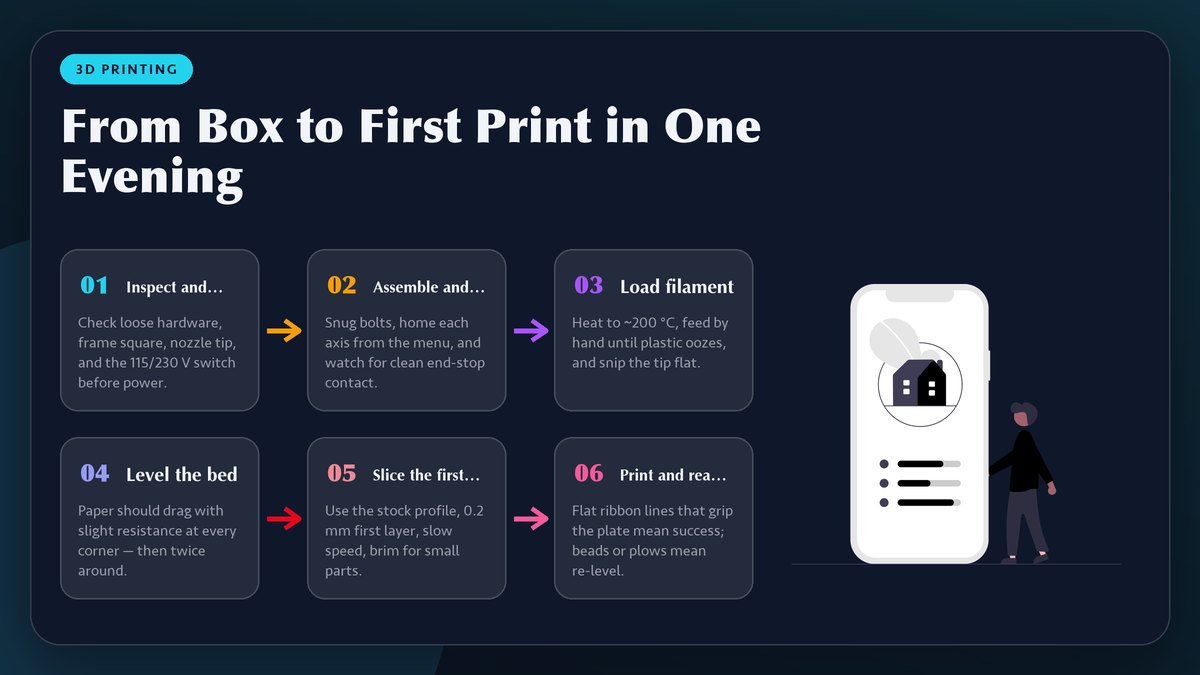
Unboxing a 3D printer is exciting right up until the moment you realize nobody taught the manual to write for humans. This guide walks you from the first box cut to a finished test print in one evening — with the bed leveling explained in plain words and the rookie mistakes handled before they happen.
The printer I unboxed in my garage three winters ago came with a manual that was technically English the way a fax machine is technically a phone. I spent the first hour guessing, the second hour swearing at a wobbly print bed, and the third hour printing something that looked like a melted candle. Every mistake I made that night was avoidable, and almost none of it was in the paperwork. What follows is the evening I should have had — the same steps, minus the guessing.
Almost every consumer FDM printer (that’s fused filament fabrication, the kind that melts plastic filament through a hot nozzle — here’s the overview if you want the background) follows the same first-evening routine. Printer brands differ in the details, but the physics doesn’t care what logo is on the box. Learn the routine once and it transfers.
Before You Plug Anything In
Ten quiet minutes of inspection saves an hour of troubleshooting. Pull everything out of the box and lay it on a flat surface, then work through this list slowly:
- Find the loose hardware. Most printers ship partially assembled with a small bag of bolts, a couple of Allen keys, and sometimes spare nozzles. Don’t open the bag yet — just confirm it exists. A missing bag means a missing part.
- Check the frame for square. Set the printer on a known-flat surface (a kitchen counter is fine) and look at it from the side. If the uprights visibly lean, the frame is twisted — fix that before anything electronic gets powered.
- Inspect the bed and nozzle. Run a fingernail lightly across the build plate. A deep gouge or a warped plate is a return-it-now problem, not a later problem. Look at the nozzle tip, too; it should be a clean cone, not a blob.
- Confirm the voltage switch. Many printers have a small red switch on the power supply marked 115/230. In North America it must be on 115. Sending 230-volt power into a machine set for 115 is the fastest way to own a very heavy paperweight.
- Give it room. The printer needs to live somewhere stable, level, and away from drafts. A wobbly shelf or a spot in front of an open window will haunt your first prints.
Assembly and the First Power-Up
Follow the manufacturer’s assembly guide in order and resist the urge to “pre-tighten” everything. Frame bolts should be snug, not strangled — an over-tightened frame is as crooked as a loose one because it pulls the rails out of alignment. When the printer first powers on, three things should happen: the screen lights up, the fans spin, and the printer lets you move each axis by hand through the menu. Test each axis from the menu before you touch anything else.
Then do a “home” and watch. The nozzle should travel to the corner (or center, depending on the printer) and the bed or gantry should rise to meet it, ending with a gentle stop — a firm tap at most. If anything grinds, screams, or keeps pushing after contact, power off and find the loose connector. This thirty-second test catches most assembly errors while they’re still cheap.
Loading Filament Without the Tangles
Filament feeds from a spool, through a tube or guide, into a gear-driven extruder, and finally into the hot nozzle. Problems happen at three spots: the spool end catches on itself, the filament misses the small hole at the extruder, or the extruder gear slips because the tension is wrong.
Heat the nozzle to around 200 °C for PLA (your spool label lists the right range), then feed the end of the filament in by hand while gently pushing. You’ll feel it catch, then a steady resistance, then a moment where melted plastic starts to ooze from the nozzle. That ooze is your victory signal. Snip the oozed tip flat with side cutters — a rounded blob can jam on its way in.
Set the spool so it unwinds freely. The classic beginner failure is a spool that feeds from the wrong side, where each rotation loops the filament over itself until the extruder can’t pull anymore and the print starves mid-layer. If your mount can hold the spool either way, feed it from the direction that lets the filament come off the top of the roll, the way tape comes off a tape dispenser.
Also give the filament’s path a once-over before every print. The tube should sit fully into its fittings at both ends, with the little retaining clips snapped in place — a tube that creeps out a few millimeters is one of the sneakiest causes of mid-print failures, because everything looks fine until the extruder starts pushing slack into thin air. And when a print session ends, don’t leave the filament loaded for weeks on end; retract it and seal the spool in a bag with its silica packet if your workshop gets humid. Brittle, moisture-swollen filament snaps and pops in the extruder, and it prints with a rough, bubbly surface that looks like a calibration problem but is really just wet plastic.
The Printer’s New Home
Where the printer lives matters more than most beginners expect, and it’s much easier to choose well on day one than to diagnose mystery failures later. The ideal spot has four qualities:
- Rigid and level. A countertop or solid workbench beats a folding table every time. If the surface flexes when you lean on it, the first layer moves with it.
- Out of drafts. Open windows, air-conditioning vents, and ceiling fans all cool the plastic unevenly as it prints, and uneven cooling is the root cause of warping and lifted corners. An enclosure solves this later; a sheltered corner solves it tonight.
- Near power, away from dust. Use a plain wall outlet rather than a power strip shared with a vacuum or compressor — those motors dip the voltage and can reset the printer mid-print.
- Visible. Put the printer somewhere you’ll walk past. You don’t need to stare at it, but the first dozen prints deserve a glance every few minutes, and a printer you can see is a printer you actually check.
One more habit worth building immediately: keep a small notebook beside the machine. Record what you printed, what filament, at what temperatures, and whether it worked. Two weeks of notes will teach you more about your specific printer than any forum thread, because you’ll finally know what you changed before the thing that worked stopped working.
Bed Leveling, Demystified
The one skill that decides whether your first week is fun or miserable
“Leveling the bed” is a misleading name. You’re not making the bed level with the floor — you’re making the bed the same distance from the nozzle at every point, within about a tenth of a millimeter. Too far and the filament lays down as loose, round strands that don’t stick to each other. Too close and the nozzle plows through the plastic, gathers it like a snowplow, or blocks the flow entirely. The sweet spot squishes the round filament into a flat ribbon that grips the plate.
Most beginner printers level manually with a knob or wheel under each corner of the bed. Here’s the whole procedure:
- Home the printer. The nozzle parks at its zero point. Disable the stepper motors from the menu so you can push the head and bed by hand.
- Move the nozzle to the first corner. Slide a single sheet of standard printer paper between the nozzle and the bed.
- Adjust the corner wheel until the paper drags. You’re aiming for the paper to slide with a slight scratchy resistance — like the paper is damp. If it slides freely, lower the bed; if it won’t move at all, raise it.
- Repeat at every corner, then the center. Go around twice. Adjusting one corner moves the others a little, so the second pass is where it actually converges.
Paper is roughly a tenth of a millimeter thick, which is exactly the first-layer height most slicers use for a 0.4 mm nozzle. That’s not a coincidence — the paper trick is the measurement.
Some newer machines ship with “automatic bed leveling”: a sensor probes the bed in a grid and the firmware compensates. Even then, do the paper pass first. Auto-leveling corrects small errors; it cannot rescue a bed that’s a full millimeter off. Prusa’s support pages have the clearest photo guides for this process across many printer styles if you want a second set of pictures.
Slicing Your First File
The printer doesn’t read 3D model files — it reads toolpaths. Turning a model into those toolpaths is the slicer’s job. Whatever printer you bought, its manufacturer almost certainly maintains a profile for the common free slicers; install one, tell it which printer you have, and the stock profile will be close enough for tonight.
Load a simple test model — small, flat on the bottom, no overhangs. The community’s favorite torture-toy is 3DBenchy, the little tugboat, and it’s popular for good reason: its hull tests first-layer adhesion, its arches test overhangs, and its chimney tests small features. For a true first print, though, pick something even simpler — a calibration cube — so that when it fails (and something small usually does), the failure is easy to read.
In the slicer, set the first layer height to 0.2 mm, the speed to 50 mm/s or less, and turn on a brim (an extra ring of plastic around the base) if the model has a small footprint. Export the file to the printer’s card or send it over the network, and resist changing five settings at once. The slicer profile that shipped with a million other identical printers is better tuned than anything you’ll guess tonight. Marlin’s firmware documentation is worth bookmarking here — nearly every consumer printer runs Marlin under the hood, and understanding what the printer’s brain is doing makes every setting screen less mysterious.
The First Print: What Good Looks Like
Start the print and don’t walk away. The first layer is the whole game. What you want to see: a smooth, continuous ribbon of plastic pressed slightly flat, each line touching its neighbor, the whole outline sticking firmly to the plate. What failure looks like: lines that bead up and roll around, lines that the nozzle visibly drags, or corners that lift off the plate within the first minute.
Learn to read the four giveaways while it lays down:
- The sound. A healthy first layer hisses softly and steadily, like rain on a tent. A scraping or clicking noise usually means the nozzle is dragging through plastic that’s already down — you’re too close.
- The shape. Good lines look flat and slightly wide, almost like paint dragged by a squeegee. Round, spaghetti-like strands mean you’re too high and the plastic never gets pressed into the plate.
- The edges. The outline should stay exactly where it was drawn. If the nozzle tugs the previous line along as it travels, the height is wrong by a hair — small, but enough.
- The ooze line. Right before the outline, the printer often drags a “purge line” off the side of the bed. If even the purge line won’t stick, stop the print and wash the plate — fingerprints and kitchen grease defeat adhesion more often than bad leveling does.
If the first layer looks wrong, cancel and re-check the leveling at the problem spot. This loop — watch the first layer, adjust, restart — is how every experienced printer owner spent their first weekend, and it is genuinely the fastest way to learn what “right” looks like. Don’t count the cancelled attempts as failures; each one is a free lesson that takes four minutes. Once a good first layer is down, the rest of the print is usually uneventful. Let a small test print run to completion, even if it’s boring. Finishing something is the point — and that finished object, warbles and all, is the first entry in what will probably become a shelf you can’t stop adding to.
When Something Goes Wrong Anyway
| Symptom on the first layer | Most likely cause | Fix |
|---|---|---|
| Filament beads up and won’t stick | Nozzle too far from the bed | Re-level that corner; paper should drag slightly |
| No plastic comes out at all | Nozzle too close, or a clog | Raise the bed corner slightly; if still nothing, heat and push filament by hand |
| Lines print but don’t touch each other | Nozzle slightly too high | Small level adjustment; check that the paper resistance feels the same everywhere |
| One corner lifts mid-print | Draft or dirty plate | Move the printer out of drafts; wash the plate with dish soap and dry fully |
| Plastic curls and sticks to the nozzle | Nozzle too close plus heat creep | Back the corner off a quarter turn and make sure the part-cooling fan runs |
Notice how four of the five fixes are leveling adjustments. That’s not a typo — bed distance genuinely causes most first-week failures, which is why this guide spends so much time on it.
What’s Next After the First Success
Print the Benchy. Then print something you’ll actually use — a shelf bracket, a cable clip, a replacement knob — because a useful print teaches you more than ten test cubes. When you’re ready to stop babysitting the machine, OctoPrint is the standard free software for running a printer from a Raspberry Pi, with a webcam view and a whole plugin ecosystem. And when the settings screens start feeling limiting rather than scary, Klipper is the firmware many owners graduate to, trading the stock brain for a faster, more configurable one.
Give the printer a couple of weeks of regular use before upgrading anything. The single biggest quality upgrade costs nothing: watch your first layers, and learn to read them like a printout of the machine’s health.
External references checked October 2026: Wikipedia on fused filament fabrication, Prusa’s official support portal, the 3DBenchy project page, Marlin firmware documentation, OctoPrint documentation, and Klipper3D documentation. Next in this series: a full calibration checklist, a filament comparison, and a symptom-by-symptom troubleshooting guide.
Leave a Reply