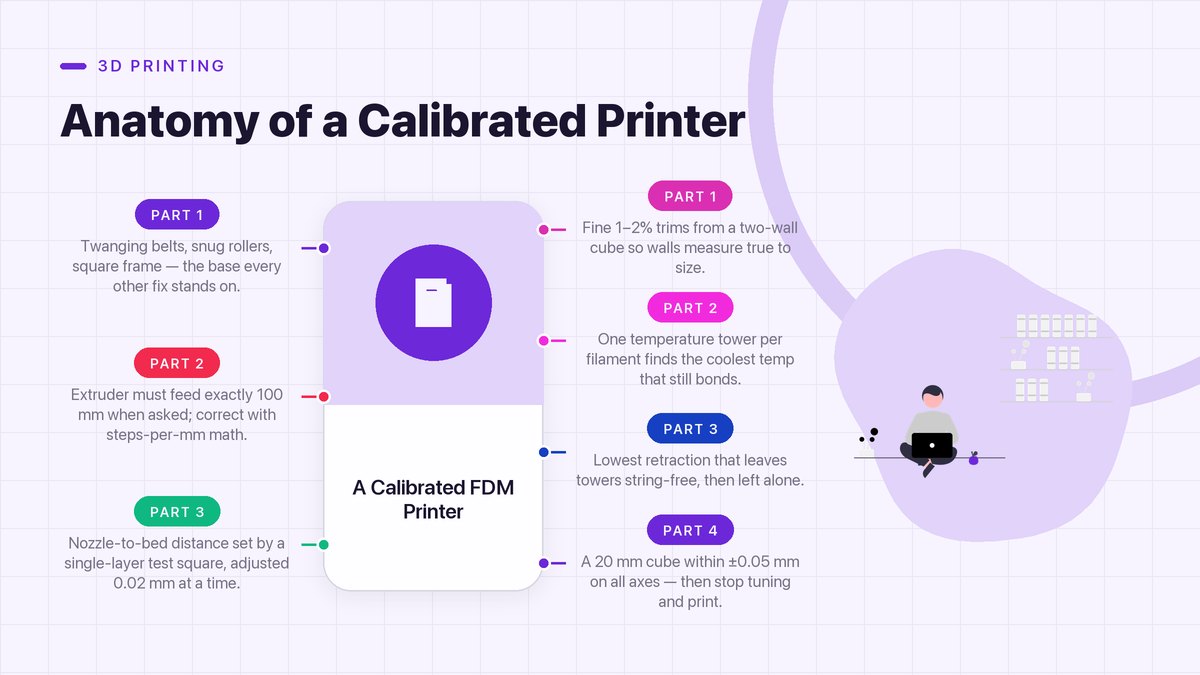
Calibration is the difference between a printer that makes “fine for the price” parts and one that makes parts people ask about. The catch is that calibrating in the wrong order wastes hours. This is the sequence that works — mechanical checks first, then dimensional accuracy, then surface quality — so a day of testing pays off for years.
I calibrated my printer badly for months before I calibrated it well, and the embarrassing part is that the bad version took longer. I’d print a temperature tower, change a setting, print a flow cube, change another setting, and end up with a pile of test parts and a machine that was somehow worse than when I started. What fixed it wasn’t a magic setting. It was doing the right tests in the right order, because each stage builds on the one before it. Change the flow rate before you’ve confirmed the extruder moves the right distance, and you’re just averaging two errors together.
This checklist assumes a standard FDM printer — the kind that melts filament through a nozzle, as covered in the overview of fused filament fabrication — running common firmware like Marlin (see the Marlin documentation) or Klipper. Every step uses free test models and takes under an hour total.
The Order Matters
Here’s the whole checklist at a glance. Print it, tape it near the machine, and work top to bottom:
| # | Check | What it fixes | Time |
|---|---|---|---|
| 1 | Frame, belts, rollers | Skewed parts, ghosting, layer shifts | 15 min |
| 2 | Extruder steps (E-steps) | Systematic over- or under-extrusion | 20 min |
| 3 | First layer and Z offset | Adhesion, elephant foot, rough bottoms | 15 min |
| 4 | Flow rate (extrusion multiplier) | Gaps between walls, fat or thin dimensions | 30 min |
| 5 | Temperature tower | Stringing, dull surfaces, weak layers | 1 print |
| 6 | Retraction tuning | Stringing, blobs at travel moves | 2–3 prints |
| 7 | Dimensional accuracy check | Holes that don’t fit, parts that don’t assemble | 20 min |
Notice what comes last: the pretty stuff. Tuning surface quality before the machine moves accurately is like waxing a car with a crooked wheel.
Step 1: Mechanical Checks (Do This First, Always)
Free, fast, and responsible for more “mystery” problems than any setting
Before a single test print, touch the machine. Squeeze each belt; it should twang like a low guitar string, not flop and not hum like a piano wire. Loose belts show up as “ghosting” — faint echoes of sharp corners repeated across the part’s surface. Over-tight belts wear out rollers and motors early.
Then check the rollers on each axis. Carriages should glide with light finger pressure and show no wobble when you grab and rock them. A carriage that rattles sideways prints layers that don’t stack on each other, and no slicer setting can compensate. Finally, measure the frame for square: print a plain 100 mm cube and check its diagonals with a caliper. A difference of more than half a millimeter means the frame is racked and every future calibration will fight it.
Step 2: Extruder Steps — How Much Plastic, Exactly
Your printer’s firmware believes it pushes exactly as much filament as it commands. Whether that’s true depends on a single number: the extruder steps-per-millimeter value. If it’s off, every print is uniformly over- or under-fed, and no flow setting downstream can fully fix it.
The test is simple. Mark the filament 120 mm above the extruder with tape, command the printer to feed 100 mm slowly (in the printer’s motion menu, or by sending G-code — the Marlin G-code reference lists the movement commands your machine understands), and measure how much actually moved:
- Exactly 100 mm? Move on. This check took you twenty minutes and confirmed the machine is honest.
- Less than 100 mm? The extruder under-feeds — a clog or slipping drive gear will also cause this, so check those first.
- More than 100 mm? Over-feeding. The steps value is too high.
Correct the number with the classic formula: new steps = old steps × (100 ÷ measured distance). Change it in the printer’s settings menu or firmware. If you run Klipper instead of Marlin, the same concept is called rotation distance — one value in the config file covers the same ground.
The community site behind the famous calibration workflow, Teaching Tech’s calibration page, automates this entire process with ready-made test G-code generators. It’s the single best bookmark for this stage.
Step 3: First Layer and Z Offset
With feeding confirmed, set the physical relationship between nozzle and bed. If you leveled manually when setting up, this is the refinement pass: print a single-layer square and inspect it. A correct first layer is uniformly matte, with lines pressed into ribbons that are hard to peel apart. Gaps between lines mean the nozzle sits high; ridges that the nozzle visibly bumps over mean it sits low. Adjust the Z offset in small steps (0.02 mm at a time) until the square looks and feels right — smooth to the fingertip, no valley at the lines.
This layer is the foundation every wall stands on, so it’s worth an extra fifteen minutes here even if you’re impatient to print real parts. And when in doubt, a thin wash of the build plate with dish soap and water fixes adhesion problems that hours of offset fiddling won’t.
Step 4: Flow Rate — the Fine Knob
E-steps set how much filament enters the extruder. Flow rate (called “extrusion multiplier” or simply “flow” in most slicers) fine-tunes how much exits the nozzle, compensating for filament diameter variation, nozzle wear, and small model geometry. It’s a percentage, typically between 90 and 105.
Print a hollow two-wall cube — no infill, no top layers — and measure both walls with calipers. Average the two, compare to your nozzle width, and nudge the flow percentage. The full protocol with test files is laid out step by step in Ellis’s print tuning guide, which has become the community’s reference for this stage and the next one. The guide’s rule of thumb matches mine: change flow by 1–2% per test, never 10% at once, because this knob is finer than it feels.
Step 5: Temperature Tower
Every filament spool prints best inside a temperature window, and the window moves with color, brand, and even pigment batch. The test is a “temperature tower” — one model sliced so that each section prints at a different nozzle temperature, from just above the minimum to just below the oozing point.
Read the tower like a report card. The coolest sections show poor layer bonding — you can often split them with a fingernail. The hottest sections droop, string, and lose detail. The sweet spot is the coolest temperature where layers still hold firmly. For most PLA that lands between 195 and 215 °C; PETG usually wants 230–250 °C. Prusa’s official support portal publishes material-specific profiles and temperature guidance if you want manufacturer baselines to start from.
Step 6: Retraction Tuning
When the nozzle moves between two parts of a model without printing, melted filament tends to drool a hair along the way. Retraction pulls the filament back inside the hot zone during those moves so nothing leaks. Too little retraction and prints come out covered in fine “hairs” (stringing). Too much and the filament grinds, air bubbles form in the melt, and you get blobs and weak spots.
Print the classic two-tower retraction test at a few settings — start around 5 mm distance at 45 mm/s for a direct-drive extruder, or 5–6 mm at 25–35 mm/s for the common Bowden tube style — and pick the lowest retraction that leaves the towers clean. Then leave it alone. Chasing stringing with ever-higher retraction is the most common way beginners ruin a working profile.
Start From a Baseline Profile, Not From Zero
Every step above assumes you’re adjusting a profile that’s already close — which is why the very first calibration move happens before any of them: load the manufacturer’s or community’s stock profile for your exact printer model and leave it alone except where this checklist says otherwise. A stock profile represents thousands of hours of combined printing on machines identical to yours. It will be 90% right out of the gate, and your job in calibration is to close the last 10% for your specific machine, your specific filament, and your specific workshop temperature.
Save your work as a named profile after each successful stage — “MyPrinter PLA v1,” “v2” after flow is dialed, and so on. When a future experiment goes sideways, you can roll back to the last known-good version instead of recalibrating from memory. This one habit turns calibration from a fragile tower of tweaks into a series of reversible decisions, and it’s the difference between owners who tune confidently and owners who are secretly afraid of their own settings screen.
Step 7: Dimensional Accuracy — the Final Exam
Everything so far aimed at this: a printed part that measures what the model says. Print a 20 mm calibration cube and measure it on all three axes with calipers.
- All axes slightly large (like 20.2 mm)? That’s usually elephant foot from a slightly low first layer — revisit Step 3’s Z offset.
- Consistently small (like 19.8 mm)? Tiny shrinkage is normal for cooling plastic; compensate with a “horizontal expansion” value around −0.1 to −0.2 mm in the slicer.
- One axis off by more? That axis’s steps-per-mm (or belt tension, from Step 1) needs attention.
- Holes print small? Universally true — printed circles are polygons, and they always shrink inward. Slightly over-size holes in your models, or use your slicer’s hole-compensation feature.
When a 20 mm cube measures 19.95–20.05 mm on every side, stop. The machine is calibrated. Every further tweak risks making it worse, and the compulsion to keep tuning is a known hobby disease with no known cure beyond printing actual projects.
A Calibration Day, Hour by Hour
Here’s how the whole checklist fits into a single Saturday, based on how these sessions actually go:
- Hour one: Mechanical pass (Step 1), E-steps (Step 2), and first-layer squares (Step 3). Everything is quick and hands-on; you’re mostly measuring and adjusting, and you finish the hour knowing the machine is mechanically honest.
- Hours two and three: Flow cube, then the temperature tower (Step 5) printing while you eat lunch. Towers take an hour or more, so start them early and let them run while you do something else — but stay where you can glance at the first minutes of every print.
- Hour four: Read the tower, set the temperature, print the retraction test pair (Step 6), pick your values, then run the final dimensional cube twice (Step 7).
- The rest: Print something you actually want. Seriously — after a day of test cubes, a real part tells you more about whether the calibration worked than a third run of the same test.
If any stage refuses to converge — flow tests that never measure right, towers where every temperature looks bad — stop and go back one step. A failure at one stage almost always means the previous stage wasn’t actually finished. Calibration problems travel backward, not forward.
Direct Drive or Bowden? It Changes Two Numbers
One wrinkle worth knowing before you tune retraction: where the extruder motor sits changes how the filament behaves. On a Bowden printer, the motor sits on the frame and pushes filament through a long PTFE tube to the hot end, so there’s a springy column of plastic between the motor and the melt. On a direct-drive printer, the motor grips the filament right above the nozzle, and that column is barely a centimeter long.
The practical consequence is retraction distance. Bowden setups need a long pull — typically 5 to 6 mm — to unload the spring in the tube. Direct drives need only about 0.5 to 1.5 mm, because there’s almost no spring to unload and pulling farther just risks sucking air into the melt. If you copy retraction numbers from a forum post without checking which drive style it describes, you can double or halve the right value and spend a weekend fighting stringing that a one-millimeter change would fix. The same distinction affects printing flexibles like TPU: direct drives chew through them happily, while Bowden printers need slow, careful settings to push squishy filament down that long tube.
When to Recalibrate
Calibration isn’t a one-time ceremony — it’s a light recurring maintenance task. The short version of the checklist (mechanical glance, first-layer square, one test cube) is worth twenty minutes in each of these situations:
- You moved the printer. Any relocation can shift frame alignment and bed geometry, even if the box traveled in your own car.
- You changed nozzle or hot end. Different nozzles sit at slightly different heights and flow differently, so revisit Steps 3 and 4.
- You switched filament families. Going from PLA to PETG to ABS isn’t recalibration so much as a separate profile — but the first run of each new family deserves the temperature tower treatment (Step 5) before you commit to long prints.
- Seasons changed. Workshop temperature and humidity shift between summer and winter more than most owners realize, and the first-layer behavior shifts with them.
- Something “feels off.” Trust that instinct. A printer you use weekly tells you when it’s out of tune the way a familiar car does — the change is small but real, and catching it early keeps it small.
What “Calibrated” Buys You
A calibrated printer is a predictable printer. You can design a bracket around a printed part, print a replacement knob for the shop radio, or knock out a box that its lid actually fits — and trust the result before the print finishes. That trust is the real payoff, and it converts 3D printing from a fiddly science experiment into a workshop tool you reach for weekly.
Do a shortened version of this checklist — mechanical pass, first layer, one test cube — any time you change filament brands, swap a nozzle, or move the machine. Twenty minutes of rechecking keeps a year of calibration from quietly drifting.
External references checked October 2026: Wikipedia on fused filament fabrication, Marlin firmware documentation (basics and G-code), Klipper3D rotation distance docs, Teaching Tech’s calibration page, Ellis’s print tuning guide, and Prusa’s official support portal. Also in this series: first-printer setup and bed leveling, a filament comparison, and symptom-by-symptom troubleshooting.
Leave a Reply