A messy shop isn’t a character flaw. It’s a measurement problem. Once you can measure the thing you want to hold — the drill bits, the cables, the jars of screws — a 3D printer will happily cut you a custom bracket for pennies of filament. This is the practical route: how to size a print to the real object, where to steal good designs, which CAD tool won’t fight you, and the print settings that make organizers strong enough to survive a decade of grabbing.
My shop reached peak chaos on a Tuesday. I was standing at the drill press, holding a Forstner bit that had been living in the original cardboard box, which had been living under a pile of other cardboard boxes, and I realized I’d spent ten minutes looking for the tool instead of the two minutes it would take to use it. That evening I printed my first drill-bit holder. It took about forty minutes of design fumbling and three hours of printing, and when I snapped the last bit into its hole the next morning, the drawer I’d been dreading opened shut like a filing cabinet. Something about that click rewired me. Within a month I’d printed brackets under a shelf, clips for every charging cable, and bins that turned a junk drawer into a parts library.
None of this required design talent. That first holder was embarrassingly simple — a flat plate with a grid of holes sized so a bit shank slid in with a light press. The trick wasn’t skill. It was that I finally measured the thing instead of eyeballing it, and that’s the whole secret this article keeps circling back to. Printed organizers work because they’re made for your object, your wall, your drawer, and nothing else in the hardware store has to compete with that.
What follows is the full path I’d hand a friend. Measuring the real object without lying to yourself. Where to find existing models so you rarely design from scratch. The beginner CAD options, ranked by how much frustration each one causes. Print settings that actually matter for parts you lean on, because a decorative figurine and a shelf bracket want very different things from the slicer. And the loop — design, print, test-fit, revise — that turns a mediocre first draft into the thing that finally stays on the wall.
One honest caveat before we start. Printing organizers is gloriously addictive, and it’s possible to print your way into a different kind of clutter. The goal isn’t to print everything. The goal is to fix the five spots that annoy you weekly, starting with the one that’s worst.
In this article
Why Prints Beat Bought Organizers
Custom means the hole fits the thing, not the other way around
Commercial organizers come in whatever sizes the manufacturer decided make sense, which is why your screwdriver rolls around in a slot cut for a fatter one and why that parts bin never quite sits flat on your shelf’s weird lip. A print doesn’t have this problem. You design the slot around the one wrench you own, the bracket around the shelf board’s actual thickness, the bin around the inside dimensions of your drawer with the slide hardware accounted for. The fit is the entire product.
There’s a second advantage that sneaks up on people: iteration is nearly free. If a store-bought rack is wrong, you return it or tolerate it. If a printed holder is wrong, you change one number and print again for thirty cents. That changes how you design. You stop trying to be perfect on the first pass because there’s no penalty for the second pass, and the second pass is almost always better than a first pass could ever be.
Cost deserves a real number, not a vibe. A medium organizer printed in PETG runs somewhere between 30 and 80 grams of filament, which at typical spool prices is well under two dollars. Electricity on a modern printer is noise, maybe five to ten cents for the print. Even with a failed first attempt and the revision, you’re usually under five dollars in materials for something that fits your shop like it grew there. Commercial equivalents that fit this badly cost three times that before shipping.
Step One: Measure the Real Object
Every failed organizer I’ve printed traces back to a measurement I rushed. The printed part is exact; the problem is that the number I typed into the CAD tool described an object in my imagination rather than the one in my hand. So the discipline is simple. Measure the real thing, on the real day, with a real tool.
Get digital calipers. This is the one purchase the whole article insists on, because a tape measure is honest to a sixteenth of an inch and a caliper is honest to a hundredth of a millimeter, and organizers live in that gap. Tight sliding fits need tolerances around 0.1 to 0.3 millimeters, and you cannot dial those in blind. Adafruit’s Learn portal covers the tool’s quirks in its measuring-tool guides — where to place the jaws, how to zero it, why the depth rod matters — in about ten minutes of reading, and it’s the right orientation for a beginner.
Measure more places than seems reasonable. Dowels vary along their length. Bits are ground to nominal size but the flutes flare. A shelf board is not the thickness the lumber yard claims it is, and even two boards from the same pile can differ. Take the measurement at the location where the print will actually grip, then take it again at two more spots and design around the largest reading, because a hole sized for the smallest reading will wedge before the part is even home.
Design in the clearance, on purpose
Clearance is the small extra space you add so parts slide instead of fight. As a working rule, add 0.2 mm per side for a snug sliding fit, 0.4 to 0.5 mm for a loose fit that drops in by hand, and around 0.1 mm for a press fit you’ll force in once and never move again. These numbers move with your printer’s accuracy, your filament, and your patience, which is why they’re a starting point, not a law. If the test print binds, you now know your machine runs tight, and you add a tenth.
Measure the space too, not just the object. A wall-mounted holder fails when you ignore the baseboard, the outlet, or the fact that the wall isn’t flat. A drawer bin fails when you forget the drawer’s slide hardware eats an inch of width. I keep a notebook by the bench with a printed grid page per project: object dimensions on the left, space dimensions on the right, and a column for the clearance I intend to add. Boring. Effective.
Where to Find Existing Models (Steal First, Design Second)
Here’s a rule that saves beginners months. Before you open CAD for any organizer, spend twenty minutes searching for one someone already solved. Workshop organizing is the most-printed category in the hobby, and the odds are excellent that a bracket for your exact tool already exists, tested by hundreds of people who left reviews saying “fits my 18V drill perfectly.”
Printables, run by Prusa, is the best first stop, with an enormous organizing section, real photos from makers, and contests that push quality up. Search by the tool’s exact model number, not just “drill holder,” because model-specific designs are where the magic lives. If your clutter is electronics — boards, sensors, jumper-wire spools — Arduino’s Project Hub collects builds that include printable mounts and enclosures worth adapting, and the same goes for Adafruit, which publishes printable mounts and cases for its own boards and sensors, designed properly, free to download.
Downloading a model isn’t cheating. It’s a starting point, and often it’s the whole solution. But learn to read the page like an engineer. Check the print profile the designer used, read the comments for fit reports from people with your same tool, and look at makes, which are photos other people uploaded of their actual printed results. A design with four hundred makes and a five-star average has been stress-tested by strangers so you don’t have to be the test.
Even when the model isn’t quite right, it becomes a reference. Download the file, open it in your slicer, and measure how the designer sized the holes and tolerances. Those numbers teach you faster than any tutorial, because they’re numbers that provably worked. Then adapt: most CAD tools let you import an STL and cut it down, scale a section, or bolt your own features onto it.
Beginner CAD: Pick Your Poison
All of these are free or free enough for hobby use
CAD has a reputation for punishing beginners, and some of it is deserved. But organizers are forgiving projects. They’re mostly boxes, holes, and rounded corners, which is exactly the shape of an easy first CAD model. Here’s the honest ranking.
| Tool | Best for | The catch |
|---|---|---|
| TinkerCAD | Total beginners; bins, plates, simple brackets in an hour | Browser-based; struggles with organic shapes and precision edits |
| FreeCAD | Parametric design; you type dimensions and parts update | Steeper curve; the interface shows its age |
| Fusion (personal use) | The hobbyist sweet spot for brackets and mechanisms | Account required; personal-use license has export limits |
| OpenSCAD | Repeatable grid designs — drill-bit holders, bin arrays | You write code instead of clicking; a text editor with consequences |
My actual advice: start in TinkerCAD even if you consider yourself too advanced for it. Drag a box, punch holes with another box, add a fillet by stacking a cylinder — that’s half of all organizers. Once a project needs a living hinge, a snap fit, or a dimension that must change everywhere at once, graduate to a parametric tool. For grid-type designs, the drill-bit holder being the classic example, OpenSCAD is weirdly perfect, because an array of 48 holes is a loop, and a loop is three lines of code. Prusa’s own documentation hub at help.prusa3d.com is worth bookmarking regardless of which tool you pick; their guides on design basics and slicing apply to nearly every printer on the market.
Whichever tool you land in, learn three operations until they’re reflex. Extrude a sketch into a solid, cut one solid from another, and fillet an edge so your hand doesn’t hate you later. With those three moves you can build nearly everything in this article.
Print Settings for Functional Parts
This is where organizers live or die. A 15% infill figurine survives because nobody leans on it. A shelf bracket survives because you told the slicer to build it like a part, not a prop. The settings below are the difference.
Walls carry the load, not the infill
The biggest mindset shift for beginners: infill is mostly irrelevant to strength, and walls are everything. Three perimeters (wall lines) is a good floor for organizers; four or five is what I’d actually run for anything that gets grabbed, hung, or loaded. Prusa’s infill documentation is worth reading here, because it shows plainly how little the pattern matters once your walls are right. The shells do the structural work. A part with 4 walls and 15% infill will outlast one with 2 walls and 50% infill every single time, while using less plastic and printing faster. Crank the walls, relax about the infill.
PETG vs PLA for the shop
PLA is the default filament and it’s fine for many organizers. It prints easily, holds detail, and handles drawer bins and drill-bit plates happily. Its weaknesses are heat — a PLA bracket near a sunny garage window or above a heat gun will creep and sag over time — and brittleness under sharp impact. PETG fixes both. It’s tougher, more heat-resistant, and slightly flexible, which is exactly what you want in a clip or a bracket that gets bumped. The trade-off is stringing and a slightly softer surface that shows scratches.
For shop organizers, my split is simple. Anything in a drawer or on a cool wall: PLA, print it and go. Anything load-bearing, near a motor or window, or designed to flex — shelf brackets, tool hangers, cable clips: PETG. If you’re torn, print PETG; the small extra hassle in setup buys away the two failure modes that actually show up in a workshop. Our deeper comparison of PLA, ABS, and PETG covers the chemistry if you want more than a rule of thumb.
| Setting | Organizer value | Why |
|---|---|---|
| Walls / perimeters | 3-4 minimum, 4-5 for load-bearing | Shells carry nearly all the strength; infill mostly doesn’t |
| Infill | 15-25% gyroid or grid | Enough to keep the top surface flat; more is wasted plastic |
| Layer height | 0.2 mm | The sweet spot of speed and strength; drop to 0.16 for fine details |
| Material | PETG for brackets and clips; PLA for bins and plates | PETG survives heat, bumps, and flex; PLA prints easier and holds detail |
| Top/bottom layers | At least 4 | Shelf surfaces need solid layers or they dent under a bin |
| Orientation | Load along the layers, never across them | Printed parts are weakest between layers; design the print so stress runs with them |
Orientation deserves one more sentence because it kills more brackets than bad material does. A layer is a weld between two surfaces, and welds are the weak line. Print your shelf bracket so it stands the way it will hang, with the load pulling layers together rather than peeling them apart. If a design forces you to print load across the layers, add fillets, thicken the section, or split the part in half and bolt the halves together.
Four Starter Projects, Ranked by Difficulty
Here are the four builds that convert most people. Each teaches one skill, each is genuinely useful on day one, and each is printable in an afternoon.
1. Drill-bit holder (learn: fit and clearance)
The gateway print. A flat plate, a grid of holes sized to each shank, and a chamfer on top so bits self-center as you drop them in. The hard part is the fit: measure each shank diameter with calipers, add your clearance per hole, and print one test hole first, always. Done right, bits click in with finger pressure and stay put when you invert the plate. Label the holes with a paint pen or by pausing the print and swapping filament for the numbers.
2. Shelf brackets (learn: orientation and walls)
The strength test. Two short legs and a gusset — the triangular rib that makes the bracket stiff. Print in PETG with four or five walls, oriented so gravity pulls the layers together, and screw it into studs rather than drywall anchors, because plastic is only ever as strong as what’s behind it. One honest warning: printed brackets are excellent for light loads — tool shelves, filament spools, small bins — but I don’t hang lumber racks or heavy machines off printed plastic, and you shouldn’t either. Design for the load you can test, then test it gradually.
3. Cable and charger organizers (learn: flex and snap features)
The clutter killer. A paddle-style clip that presses onto a desk edge and grips a cable with a flexible lip, or a wall-mounted spool that winds a long cord. This is where PETG’s slight flex earns its keep, and where you’ll learn to design living hinges and snap fits that survive a thousand insertions. Make the gripping lip thinner than feels safe — 1.5 to 2 mm — because stiffness, not thinness, is what breaks snap features. This pairs naturally with thinking through your shop layout, since cable routes belong in the plan before the clips go up.
4. Drawer bins (learn: designing to a space)
The finishing move. Measure the drawer’s inside width, subtract the slide hardware, divide by the bin count, then subtract clearance so the row slides out together. Print at 15% infill with three walls and they’ll last years. The pro touch is to add a finger notch and print the bin labels as a color change at a set height. A drawer of fitted bins turns “a pile of fasteners” into “a library,” and it will spoil you for every other drawer in the house.
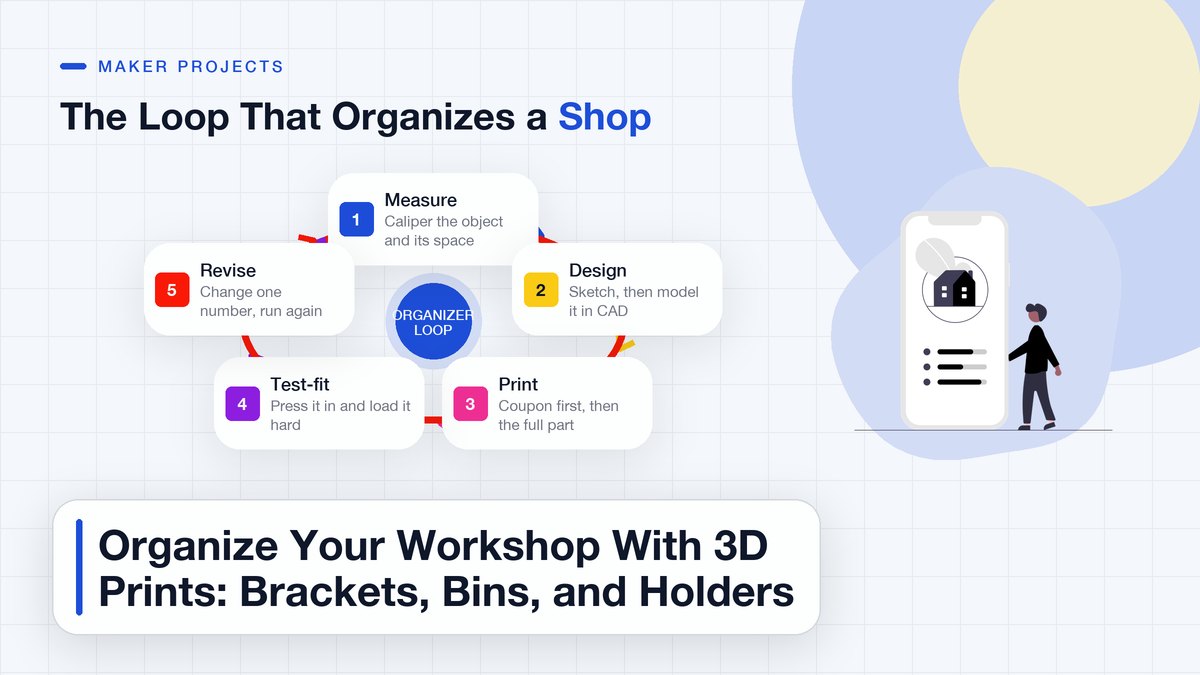
The Loop: Design, Print, Test-Fit, Revise
Every organizer you admire went through the same four laps, whether the designer admits it or not. The loop is the actual craft. The printer just does the middle step.
Design starts from measurements, never from imagination. Sketch the part on paper first — one view is enough — with the real dimensions written on it. Then build it in CAD. Expect this stage to feel slow at first and fast by your third project; you’ll be surprised how much of the skill is just learning to see the part as a small pile of boxes and cylinders.
Print the cheap version first. Before the full part, print the critical feature alone: the hole, the clip, the snap. Use your normal settings but at a fraction of the time. If the test coupon fits, commit to the full print. If it doesn’t, you’ve spent fifteen minutes learning exactly what number to change.
Test-fit like you mean it. Don’t hover the part near the tool and squint. Press it in. Hang weight on it. Open and close the drawer forty times. Grab it the way you’ll actually grab it in six months, which is never gently. Note what binds, what rattles, what flexes more than it should. Those three observations are your revision list.
Revise one variable at a time. If the hole binds, add 0.1 mm. If the clip is too stiff, thin the lip. If the bracket flexes, add a wall and a fillet before you add infill. Change one thing per print so you learn which change did what. A maker who has run the loop twenty times designs better on the first pass than a beginner who has printed two hundred hours of other people’s models, because the loop is where the tolerances stop being numbers and become intuition.
This loop is also why I tell beginners not to buy a printer for “the cool stuff.” Buy it for the boring stuff. The fiftieth iteration of a cable clip teaches you more about your machine than any figurine, and you end up with a shop that stays organized — which, if we’re honest, was the actual goal.
Keep It From Taking Over
A closing word of warning from someone who printed a holder for his holders. Organizers multiply. The antidote is a simple filter: print for a real annoyance you hit this week, and let the design earn its filament by solving something you actually tripped over. Don’t print speculative organizers for tools you might own someday — design for the bench you have. And when a print disappoints, recycle it into filament scraps or toss it without guilt, because a drawer of “maybe useful someday” plastic organizers is just the original junk drawer wearing a fancier costume.
Start with one drawer or one wall this weekend. Measure it tonight, find or sketch the part tomorrow, and print it before you talk yourself into a full-shop overhaul. The shop that clicks shut, one fitted holder at a time, beats the shop you reorganized once in a heroic weekend and watched decay by spring.
Sources & references: Prusa’s documentation hub and its infill guide, Adafruit Learn and Adafruit’s printable mounts, and Arduino Project Hub, all linked above. Related reads on this site: setting up your first 3D printer, the calibration guide that makes tolerances predictable, choosing PLA, ABS, or PETG, and planning a small workshop layout. Updated October 2026.